

API
Change cFosSpeed settings using SPD.exe
data.ini file
Settings represent the current characteristics of your connection. Parameters are subject to change with newer version. So change them ONLY if you REALLY know, what you are doing. Changes should always be done using spd commands!
MaxTxRaw
- max traffic send/second without waiting for acks
MaxRx
- max traffic that was received/second
MinDelay
- the minimum delay that was ever measured.
Method
- the underlying transport medium
MaxDelay
- the maximum delay that was ever measured.
TotalRxVolume
- the name says it all
TotalTxVolumeRaw
- the name says it all
TotalTxVolumeAcked
- the name says it all
MaxIpLen
- the maximum size of ip packet that was ever sent
PingCnt
- number of pings sent
PongCnt
- number of ping replies received
MaxRxMss
- maximum tcp mss that was ever received
MaxTxMss
- maximum tcp mss that was ever sent
AddHops
- use spd sethops X to change this value. increases the hop count that is pinged for latency measurements
msslimit
- the maximum tcp mss that cfosspeed will allow. if greated, it will force tcp mss to be this value.
SPD.exe - More Info
DSCP configuration
Classes can have a DSCP value as well. If set, this value is set to all outgoing packets of that class. Specify “-dscp X” in the class line to set DSCP value of “X”. DSCP values range from 0 to 63. By default, DSCP values are not set for any class. For more details see RFC 2474 (Differentiated Services, www.ietf.org/rfc/rfc2474.txt).
VLAN configuration
You can set VLAN Identifier (VID) and Priority Code Point (PCP) for traffic classes as well. To set VID, use “-vlan-id X” option for the traffic class, where “X” is the Identifier. VIDs range from 0 to 4095 (0xfff hex). To set PCP, use “-vlan-prio X”, respectively, where X is the PCP. PCPs range from 0 to 7. If you set one of these, all outgoing packets will have VID and PCP set. By default, VLAN settings are not changed for the packets of any class. For more details see IEEE 802.1Q (e.g. on Wikipedia).
RX-priorisation
Classes can have weights assigned for rx-priorisation. The concept is like this:
Each class (highest, higher, high, default, low, lowest) has a weight assigned. Furthermore, all TCP connections are mapped to a certain class (this only applies for bulk data; e.g. ACKs are always sent out in the higher class; see below for how the class mapping is done), according to filter rules. The class weight is used when TCP windows for rx-shaping are computed. A TCP connection with weight 100 gets a window that is about 4 times bigger than a connection with weight 25. This should usually translate into more speed on that connection, but not necessarily (e.g. the sending server might not be fast enough).
The pre-set weights are:
    class highest -weight 400
    class higher  -weight 400
    class high    -weight 400
    class default -weight 100
    class low     -weight 25
    class lowest  -weight 6
I.e. regular browser downloads (class default) should get about 16 times the speed than Torrents (class lowest).
The weighting needs some time (some seconds) to be through, so a newly created higher-than-average TCP connection needs these seconds to come to full speed.
How does cFosSpeed know which TCP connection has which class, since the filters assign classes on a packet-by-packet basis? Well, there are filter expressions that are constant for all packets that belong to a certain connection. The expression might be true or false, but it doesn’t change from one packet to the next. You can see which filter expressions have this criterium by using “spd filter”:
    rt-  -highest -c highest
    rt-  -higher -c higher
    rt-  -high -c high
    rt-  -l7-prot @higherprots -c higher
    rtc  -l7-prot @highprots -c high
    rtc  -l7-prot @lowprots -c low
    rtc  -l7-prot @lowestprots -c lowest
    rt-  -prog @higherprogs -c higher
    rtc  -prog @highprogs -c high
    rt-  -prog @lowprogs -c low
    rtc  -prog @lowestprogs -c lowest
    rt-  -low -c low
The first column (with the “rtc”) shows this: ‘r’ means the filter is active when receiving packets, ‘t’ means the same for transmitting packets. ‘c’ means that it is constant and thus ‘c’ is set for the -l7-prot and -prog rules, since the l7-protocol and program name are saved on a per-connection basis. The -high etc. filters are packet specific and thus have no ‘c’ set.
Now what if cFosSpeed is wrong about the constantness of a filter expression? For example you could have DSCP values assigned to certain connections from another machine, but the -dscp rule is a per-packet rule, not a per-connection rule. To force cFosSpeed to set the class even on account of such a filter expression, use the -force-set-class option. By using this, the filter expression will be flagged ‘c’ and thus considered constant over all packets of that conenction.
Creating your own rules
If you want to assign a class to your own prioritized traffic, use “high”. It’s probably best not to use the other two classes, as this may interfere with overall traffic-shaping performance. You may even add a class of your own, but don’t use a priority of 90 or more for the same reason mentioned above.
Keep in mind that what the whole prioritization system basically does is reorder packets for transmission. Thus, prioritizing more packets will leave fewer packets “normal”. Taken to the extreme, this means that priotizing every single packet indiscriminately would soon slow traffic on the fast lane to little more than stop and go.
The spd utility (see below) and the trace.txt file can be used to show class-usage statistics. As a general rule of thumb, I’d advise you prioritize no more than 10% or 20% of your traffic.
The spd utility
The cFosSpeed installation directory contains a small file called spd.exe for communicating with cFosSpeed. It lets you handle commands and will display results for you.
An easy way to use the spd tool is to click on Start – Programs – cFosSpeed – Open Console. This will bring up a regular command prompt with the cFosSpeed directory as the current one.
Another way would be to copy it to some directory in your PATH.
“spd help” provides a list of commands.
“spd ver” shows cFosSpeed version information.
Changing expressions and classes
“spd class” lists all traffic classes. It usually looks like this:
    class highest -prio 100 -weight 400
    class higher -prio 90 -weight 400
    class high -prio 80 -weight 400
    class default -weight 100
    class low -prio 0 -speed 25%,-10 -weight 25
    class lowest -prio 0 -speed 25%,-30 -weight 6
    class drop
If you want to add a class, use “spd class <name> -prio <prio>”, where <name> is the class name and <prio> the assigned priority.
If you want to delete a class, use “spd class <name> -D”. Classes can only be deleted if there are no expressions referring to them.
You can later change the priority of an already existing class <name> by using “spd class <name> -prio <prio>”. However, you cannot change a low into a high class or vice-versa.
Likewise, you can change the speed of a class after it’s been created. Just use “spd class <name> -speed <speed>” on an already existing <name>, where <speed> can be any positive number or “inf” for no speed limit.
You can get a list of the active filters by using the “spd filter” command. This will usually read something like this:
    0 -highest -c highest
    1 -higher -c higher
    2 -high -c high
    3 -prog @user.ini/highprogs -c high
    4 -prog @highprogs -c high
    5 -low -c low
    6 -prog @user.ini/lowprogs -c low
    7 -prog @lowprogs -c low
    8 -prog @user.ini/lowestprogs -c lowest
    9 -prog @lowestprogs -c lowest
New filter expressions can be appended to the bottom of the expression list by the “spd filter -A <filter> -c <class>” command, where <filter> is a set of filter rules and <class> is the target traffic class.
In the same way, you can use “spd filter -I <pos> …” to insert a filter at a specific position into the filter list.
“spd filter -R <pos> …” replaces the filter at position <pos> with the new filter.
“spd filter -M <old> <new>” moves a filter from its old position <old> to a new position <new>.
Finally, “spd filter -D <pos>” deletes a filter at position <pos>.
If you want to review your traffic-class usage, type “spd cstat” to get corresponding statistics. This is an example of what it looked like after a long time transferring:
    shaping is currently enabled; txspeed = 139907, max_queue_size = 419,721

    class highest -prio 100 -weight 400
      sent          320,292 (  2%) packets      8,968,176 (  0%) bytes
      in queue            0        packets              0        bytes

    class higher -prio 90 -weight 400
      sent        1,045,165 (  8%) packets     42,809,356 (  0%) bytes
      in queue            0        packets              0        bytes

    class high -prio 80 -weight 400
      sent          411,963 (  3%) packets     66,261,691 (  0%) bytes
      in queue            0        packets              0        bytes

    class default -weight 100
      sent          103,663 (  0%) packets     15,722,812 (  0%) bytes
      in queue            0        packets              0        bytes

    class low -prio 0 -speed 25%,-10 -weight 25
      sent            4,670 (  0%) packets      5,979,376 (  0%) bytes
      in queue            0        packets              0        bytes

    class lowest -prio 0 -speed 25%,-30 -weight 6
      sent        9,828,143 ( 83%) packets 10,913,999,530 ( 98%) bytes
      in queue            0        packets              0        bytes

    class drop
      dropped             0        packets              0        bytes

    queue overflow        0        packets              0        bytes
Filter expressions and classes can be modified while cFosSpeed is up and running online. If you want to save the changes you made, use “spd save” with either -class, -filter or -all to specify what to save.
You can change settings.ini from the outside with an editor as well. But you have to reload the new settings after you saved the new version of settings.ini by typing “spd reload”. This will, however, only reload the filter settings, not the classes.
Managing program names:
To manage lists of programs that are to be filtered with -tcp-prog, -udp-prog or -prog there are three commands:
- addkey <key> <section>
- This will add the line <key> to the section <section> in settings.ini.
- delkey <key> <section>
- This will delete the <key> line from <section>.
- showsect <section>
- This will display all keys set in the named section.
More useful commands:
With the “spd netstat” command, you can review statistics of the total traffic transmitted over your line. After the long time mentioned above, our sample stats looked as follows:
    IP statistics                     sent       rcvd     bytes sent     bytes rcvd

      Good packets              11,714,403  8,245,216 11,053,999,872  1,874,597,769
      Fragments                      5,267      4,608      5,781,578      4,195,207
      Fragment timeouts              5,191      4,532
      Fragments ignored                 72         76         47,732         42,236
      Protocol 2 (IGMP)                 13          0            520              0


    ARP statistics                    sent       rcvd     bytes sent     bytes rcvd

      Good packets                     783    130,384         21,924      5,997,484


    ICMP statistics                   sent       rcvd     bytes sent     bytes rcvd

      Good packets                 320,702    341,119      9,027,507     19,482,227
      Bad packets                        0      1,085              0        114,283


    UDP statistics                    sent       rcvd     bytes sent     bytes rcvd

      Good packets               1,479,668  1,256,672    146,482,897    158,899,222


    TCP statistics                    sent       rcvd     bytes sent     bytes rcvd

      Good segments              9,905,831  6,638,246 10,892,171,744  1,691,413,796
      Checksum errors                    0         97              0          9,394
      Segments w/o connection        1,961        826        223,937         36,904
      Invalid RST segments               3          7
      ACKs for unset data                0          2
      Segments after reset             765        562         78,108        299,641
      Filtered resents                 193                   233,461
      Used sequence space                             10,304,070,182  1,409,658,307
      Resent segments              184,715     23,005    196,810,498     14,087,200
      Reordered segments                13    200,175            556     80,270,918

      Total sessions                66,765
      Active sessions                    4
      Orderly releases              60,222
      Abortive releases              6,091
      Timeouted sessions               448
      Failed connection attempts    15,905      2,396
      Peak sessions                    147
      Peak half-open sessions          121


    RTP statistics                    sent       rcvd     bytes sent     bytes rcvd

      RTP Packets                        0          0              0              0
      RTCP Packets                     347        331          9,032          9,552
It’s really a lot like the Windows NETSTAT command, except it does only count packets transmitted on the cFosSpeed connection rather than all packets in the system and in some respects it’s much more detailed.
The “spd cperf” command will switch on or off class traffic dumping. By setting “spd cperf on” cFosSpeed will dump about once per second how many bytes were sent in what priority class. This can help in testing filter rules or finding performance problems.
“spd fstat” command displays which filters matched how often. Use it to check if your filters are working. “spd fstat -clear” clears the stats.
Connection Technology setting
cFosSpeed tries to auto-detect which technology you use to access the Internet. Sometimes it guesses wrong or the technology used it too esoteric. Here is a list of currently suppoted values:
- 1
- PPPoE
In spd this is called “pppoe”.
This is sometimes called “RFC 1483 Bridged, PPPoE” or “RFC 2684 Bridged, PPPoE”. - 2
- PPPoA, VC-multiplexed
In spd this is called “pppoa_vc_mux”.
This is sometimes called “RFC 2364 VCMUX”. - 3
- ISDN HDLC with or without VJ-compression
In spd this is called “isdn”. - 4
- PPTP
In spd this is called “pptp”. - 5
- Raw IP (with DHCP)
In spd this is called “raw_ip”. - 6
- PPPoA, LLC-encapsulated
In spd this is called “pppoa_llc”.
This is sometimes called “RFC 2364 LLC”. - 7
- LLC encapsulated routed IP over AAL
In spd this is called “ip_over_aal5”.
This is sometimes called “RFC 1483 Routed”, “RFC 1577 Routed” or “RFC 2684 Routed”. - 8
- Adaptive, much like PPPoE method.
In spd this is called “adaptive”. - 9
- LLC encapsulated bridged 802.3 Ethernet over AAL5.
In spd this is called “bridged_over_aal5”.
Sometimes this is called “RFC 1483 bridged” or “RFC 2684 bridged”.
You can check the value by issuing a “spd set method” command or change it by using “spd set method X”, where X is the new value.
TCP MSS handling
cFosSpeed manages your TCP MSS (“MSS clamping”) (i.e., the MTU for TCP packets) automatically. The MSS values chosen are chosen so data transfer rates are maximized and ping times are minimized.
But if you want cFosSpeed to leave the MSS alone, you can enter “spd gset handle_mss 0” to instruct it so. Add a “-save” to have the setting saved in cfosspeed.ini.
Reading the trace.txt file
Many different parts of cFosSpeed write to the trace file trace.txt and \WINDOWS\cFosSpeed_Setup_Log.txt. You can distinguish them by the character that separates the time in hh:mm:ss from the milliseconds:
170058.515
cfosspeed.sys
170058'515
cfosspeed.exe
170058~515
speedsrv.dll
170058:515
cfosspeed.dll
170058_515
setup.exe
170058-515
spd.exe
SPD.exe - the cFosSpeed API
Detailed description of spd commands (with examples)
spd command – overview
To use spd commands you can enter them on the cFosSpeed console, which can be open by
START/Programs/cFosSpeed/cFosSpeed Console
If you enter the command spd help you get the following list of commands:
- set port specific variable (set <v> /? for help)
- module <name> on/off
- switch module <name> on or off
- perf on/off
- switch statistics display on/off
- close
- close LAN port
- ping
- send a echo request.
- sethops
- set the TTL for outgoing test pings.
- speed
- show current shaper settings.
- medium
- set connection characteristics (medium /? for help)
- tsclear
- clear the traffic shaping settings for this connection.
- class
add a new traffic class or change settings on an existing one.
- -speed <x>
- sets the speed to <x>. use ‘inf’ to specify infinite speed.
- -prio <x>
- sets the priority to <x>
- -dscp <x>
- set DSCP value of packets to <x>. use ‘none’ to not set.
- -clear
- clears the stats.
- cstat
- print all classes with stats. accepts a wildcard like ‘*’ or ‘f*’. -clear clear stats afterwards.
- filter
show/add/modify filters. -print prints filters after the operation.
- <no option>
- show all filters
- -A <f>
- append filter <f> at the end.
- -D <num>
- delete filter at position <num>
- -I <num> <f>
- insert filter <f> at position <num>
- -R <num> <f>
- replace filter at position <num> with filter <f>
- -M <old> <new>
- move filter from position <old> to <new>
- reload
reload settings from ini file.
- -filter
- reload filters
- save
save filter/class settings to ini file.
- -class
- save classes
- -filter
- save classes or filters.
- addkey <section> <key>
- add <key> to <section> in settings.ini
- delkey <section> <key>
- delete <key> from <section> in settings.ini
- showsect <section>
- show section <section> in settings.ini
- fwstat
- show firewall statistics (-clear to clear after display)
- fstat
- show all filter statistics (-clear to clear after display)
- netstat
- print global network protocol statistics
- pingstat
- print ping statistics (-clear clears stats after printing)
- cons
- list of tcp connections (-cps for cps, -vol for volume)
- budget
- show active budget’s settings and stats
- burst
- start a burst of data to check line speed
- ports
- list all ports
- pcnt
- show packet counters
- ver
- print cFosSpeed version info
- dump
- on/off/in/out/net/app/ign/ip/ipr dump of network packets
- gset
- set global variable (-save to save it to ini file)
- tvstat
- print tcpview statistics
- prognames
- print known program names
- reset_budget
- reset online budget
Description of spd commands (with examples)
spd set
With spd command set different cFosSpeed values can be set manually. You can get an overview of all values by simply entering spd set.
If you want to change a value manually,the following command structure applies : spd set = ‘value’.
To get detailed instruction, type set /?
Example: Output from spd set
C:\Programme\cFosSpeed>spd set
avg_time = 4000
budget = 0
burst_cnt = 3
curr_max_rx = 791599
curr_max_tx = 1055763
delay_auto = 1
fixed = 0
high_diff_cnt = 1683
inhibit_bridged = 0
low_diff_cnt = 1360
maxdelay = 24102267
maxiplen = 1492
maxrx = 6030441
maxtxacked = 1433436
maxtxraw = 1445060
medium = adaptive (0)
method = adaptive (8)
mindelay = 8186
net_talk = 1
net_talk_bcast = 0.0.0.0
perf = 0
ping_cnt = 113804
pong_cnt = 103173
record_packet_sizes_rx = 0
reg_id = 3
rx_delay = 20000
rx_limit = inf
rx_width = 1497
tcp_cons = 42836
time_used = 885530
tx_bounce_cnt = 5
tx_delay = 10000
tx_limit = inf
tx_width = 1000
txspeed = 1517313
udp_cons = 42679
vari_fixed = 0
variance = 5121
vollso = 9699544186 (9250M)
volrsc = 0 (0)
volrx = 19347327844 (18.01G)
voltxacked = 10165906693 (9694M)
voltxraw = 11648109237 (10.84G)
wperf = 0
Example: Changing the fixed value to 1
C:\Programme\cFosSpeed>spd set fixed=1
fixed = 1
spd ping
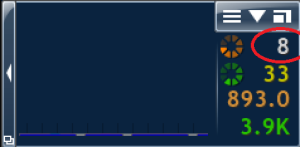
The spd command ping sends a single measuring ping. The current value of the ping time then flashes briefly in the numerical cFosSpeed status window. In the example this is the value 8 ms
Example
C:\Programme\cFosSpeed>spd ping
- set port specific variable (set <v> /? for help)
- module <name> on/off
- switch module <name> on or off
- perf on/off
- switch statistics display on/off
- close
- close LAN port
- ping
- send a echo request.
- sethops
- set the TTL for outgoing test pings.
- speed
- show current shaper settings.
- medium
- set connection characteristics (medium /? for help)
- tsclear
- clear the traffic shaping settings for this connection.
- class
add a new traffic class or change settings on an existing one.
- -speed <x>
- sets the speed to <x>. use ‘inf’ to specify infinite speed.
- -prio <x>
- sets the priority to <x>
- -dscp <x>
- set DSCP value of packets to <x>. use ‘none’ to not set.
- -clear
- clears the stats.
- cstat
- print all classes with stats. accepts a wildcard like ‘*’ or ‘f*’. -clear clear stats afterwards.
- filter
show/add/modify filters. -print prints filters after the operation.
- <no option>
- show all filters
- -A <f>
- append filter <f> at the end.
- -D <num>
- delete filter at position <num>
- -I <num> <f>
- insert filter <f> at position <num>
- -R <num> <f>
- replace filter at position <num> with filter <f>
- -M <old> <new>
- move filter from position <old> to <new>
- reload
reload settings from ini file.
- -filter
- reload filters
- save
save filter/class settings to ini file.
- -class
- save classes
- -filter
- save classes or filters.
- addkey <section> <key>
- add <key> to <section> in settings.ini
- delkey <section> <key>
- delete <key> from <section> in settings.ini
- showsect <section>
- show section <section> in settings.ini
- fwstat
- show firewall statistics (-clear to clear after display)
- fstat
- show all filter statistics (-clear to clear after display)
- netstat
- print global network protocol statistics
- pingstat
- print ping statistics (-clear clears stats after printing)
- cons
- list of tcp connections (-cps for cps, -vol for volume)
- budget
- show active budget’s settings and stats
- burst
- start a burst of data to check line speed
- ports
- list all ports
- pcnt
- show packet counters
- ver
- print cFosSpeed version info
- dump
- on/off/in/out/net/app/ign/ip/ipr dump of network packets
- gset
- set global variable (-save to save it to ini file)
- tvstat
- print tcpview statistics
- prognames
- print known program names
- reset_budget
- reset online budget
Description of spd commands (with examples)
spd set
With spd command set different cFosSpeed values can be set manually. You can get an overview of all values by simply entering spd set.
If you want to change a value manually,the following command structure applies : spd set = ‘value’.
To get detailed instruction, type set /?
Example: Output from spd set
C:\Programme\cFosSpeed>spd set
avg_time = 4000
budget = 0
burst_cnt = 3
curr_max_rx = 791599
curr_max_tx = 1055763
delay_auto = 1
fixed = 0
high_diff_cnt = 1683
inhibit_bridged = 0
low_diff_cnt = 1360
maxdelay = 24102267
maxiplen = 1492
maxrx = 6030441
maxtxacked = 1433436
maxtxraw = 1445060
medium = adaptive (0)
method = adaptive (8)
mindelay = 8186
net_talk = 1
net_talk_bcast = 0.0.0.0
perf = 0
ping_cnt = 113804
pong_cnt = 103173
record_packet_sizes_rx = 0
reg_id = 3
rx_delay = 20000
rx_limit = inf
rx_width = 1497
tcp_cons = 42836
time_used = 885530
tx_bounce_cnt = 5
tx_delay = 10000
tx_limit = inf
tx_width = 1000
txspeed = 1517313
udp_cons = 42679
vari_fixed = 0
variance = 5121
vollso = 9699544186 (9250M)
volrsc = 0 (0)
volrx = 19347327844 (18.01G)
voltxacked = 10165906693 (9694M)
voltxraw = 11648109237 (10.84G)
wperf = 0
Example: Changing the fixed value to 1
C:\Programme\cFosSpeed>spd set fixed=1
fixed = 1
spd ping
The spd command ping sends a single measuring ping. The current value of the ping time then flashes briefly in the numerical cFosSpeed status window. In the example this is the value 8 ms
Example
C:\Programme\cFosSpeed>spd ping
spd sethops
With the command sethops you can set the ttl value of the cFosSpeed measure pings. Just set the number i for the value. The output is: “addhops 2+i (ttl i)“, where first you get the variation from the default value (2). Then you get the current and new ttl-value.
Hint: The command only works, if you are online. If you are not you will get the error message: cannot perform command; section name still unknown
Example: set ttl-value to 5
C:\Programs\cFosSpeed>spd sethops 5
add_hops = 3 (ttl 5)
see also:
http://en.wikipedia.org/wiki/Time_to_live
spd speed
With the spd command “speed”, you get an overview of various traffic shaping values. The most important are:
- maxrx – maximum download bandwidth in cps
- method – Information about the transmission method used: PPPoE, PPPoA, PPPtP, Cable, etc.
- addhops – here the current ttl value is displayed in brackets.
- pingcnt – total number of pings sent
- pongcnt – total number of ping responses (pongs) received
- txspeed – Upload bandwidth in cps
Example:
C:\Programme\cFosSpeed>spd speed
Current shaper settings (v13.00.3000):
maxtxraw=1445K maxtxacked=1433K maxrx=6030K avg_time=4000
mindelay=7441 variance=3896 vari_fixed=0
reg_id=3 method=adaptive (8) pinger=udp_km3
voltxraw=10.86G voltxacked=9704M volrx=18.36G time_used=10d 7h
maxiplen=1492 rx_limit=inf tx_limit=inf inhibit_bridged=0
ping_cnt=115966 pong_cnt=105300 (90.8%) burst_cnt=3
adapter=WIFI link speed: rx=108.3M tx=43.87M
txspeed=1517K fixed=0 tx_bounce_cnt=5 calibrated=100
tx delay=10000-14896 rx delay=20000-25393 delay_auto=1
spd tsclear
The command “spd tsclear” clears the traffic shaping settings for the current connections. The current data in the corresponding section of the data.ini file is deleted. The connection can now be recalibrated.
Example:
C:\Programme\cFosSpeed>spd tsclear
traffic shaping settings cleared.
spd dump
With the “dump” command you can write a text file (dump.txt) that records all datapackets.
Example:
C:\Programme\cFosSpeed>spd dump ip
dump ip (64)
dump data: IP packets.

C:\Programme\cFosSpeed>spd dump off
dump off (0)
functions:
    on  : turn on writing of dump file
    off : turn off writing of dump file
    in  : dump only incoming data packets
    out : dump only outgoing data packets
    net :
    app :
    ign :
    ip  : dump IP packets (possibly fragmented)
    ipr : dump IP datagrams (after IP reassembly).
spd cstat
The “cstat” command provides upload statistics for sent data packets of the individual cFosSpeed traffic shaping classes (highest, higher, high, default, low and lowest). The first line of the command output indicates whether traffic shaping is enabled. The upload bandwidth in cps (txspeed) and the maximum queue overflow value are also specified here.
Example:
C:\Programme\cFosSpeed>spd cstat
shaping is currently enabled; txspeed = 19659, max_queue_size = 58,977

class highest -prio 100
  sent            2,431 (  4%) packets         68,068 (  0%) bytes
  in queue            0        packets              0        bytes

class higher -prio 90
  sent           16,777 ( 34%) packets        671,716 (  3%) bytes
  in queue            0        packets              0        bytes

class high -prio 80
  sent           10,489 ( 21%) packets      1,235,682 (  5%) bytes
  in queue            0        packets              0        bytes

class default
  sent           14,593 ( 29%) packets     19,897,796 ( 90%) bytes
  in queue            0        packets              0        bytes

class low -prio 0 -speed 25%,-10
  sent            4,820 (  9%) packets        221,720 (  1%) bytes
  in queue            0        packets              0        bytes

class lowest -prio 0 -speed 25%,-30
  sent                0 (  0%) packets              0 (  0%) bytes
  in queue            0        packets              0        bytes

class drop
  dropped             0        packets              0        bytes

queue overflow        0        packets              0        bytes
spd ver
The “spd ver” command outputs information about the currently installed version. The version number, build number and installation date including the installation time are displayed. You will also receive information about the operating system and processor used. Finally, the current installation date is stated as well as the installation and info directories of cFosSpeed.
Example:
C:\Programme\cFosSpeed>spd ver
This is cFosSpeed (x64) v13.00, build 3000
Copyright (c) 2003-2023 Atlas Tech Solutions SM PC -- https://atlas-cfosspeed.comOS: Windows 10 Home Multiprocessor Free (x64) (16 procs) v10.00.22631, LangId 0409
OS build is ???? (x64) (22621.1.amd64fre.ni_release.220506-1250)
CPU: 13th Gen Intel(R) Core(TM) i7-1360P, ID 0b06a2h (06_bah, Raptor Lake (Raptor Lake-P))
Time now: 2024-02-07 15:27:44.987 (UTC+1)
Load time: 2024-02-07 15:27:14.748 (UTC+1)
CPU speed: 5762 cfops
Using performance counter running at 10 MHz
Timer resolution is 4 msec (coarsest=15.625)
Driver base address is 0xfffff8062d4f0000; timestamp is 65841734 (2023-12-21 10:45:08 UTC)
Installation directory is "C:\Program Files\cFosSpeed\"
Programdata directory is "C:\ProgramData\cFos\cFosSpeed\"
Licensed to (End-user license) [A10000]
spd gset
With the copmmand spd “gset” some of the cFosSpeed variables are listed. They switched on (1), off (0) or set to certain value. To switch a function on and off or set it to a certain value you can use commands with the folowing structure “spd gset <function>=X” (where X is 1, 0 or the value to be set)
If you add “-save” you can save the settings and they will be also set after the next reboot of your system.
Enter “spd gset” and you will get:
C:\Programs\cFosSpeed>spd gset
analyze_rtp = 1
auto_burst = 1
avoid_loss = 1
balloon_no_pings = 0
bulk_detect = 1
delay_ndis_completions = 0
dump_arp = 0
dump_ascii = 1
dump_framing = 0
dump_relseq = 0
dump_sessions = 0
dump_tcp_data = 0
dump_udp_data = 1
dump_wshark = 0
expand_rwin = 1
expand_rwin_dest_time = 200
fg_detect = 1
filter_fix = 3
firewall = 0
func_trace = 0
fwlog = 1
global_counters = 0
handle_mss = 0
handle_tsopt = 0
l7_detect = 1
latency = 2
log_sessions = 0
max_dump_size = 16777216 (16 M)
max_expand_rwin_time = 300
max_fwlog_size = 4194304 (4 M)
max_pinglog_size = 1048576 (1 M)
max_queue_time = 1000
max_session_dump_size = 100000
max_session_log_size = 1048576 (1 M)
max_trace_size = 16777216 (16 M)
mcast_router = 0
net_talk_default = 1
net_talk_port = 889
passthru = 0
patch_dns_ttl = 0
ping_fixed = 0
pinglog = 0
prioritize_ssl = 1
reg_id_default = 3
resend_in_queue = 0
router_info = 1
router_stats = 1
rtp_trace = 0
rx_shape = 1
save_in_session = 1
send_usage_metadata = 1
shape = 1
store_dns_names = 1
strict_rtp_check = 1
tcp_warn = 0
traffic_stat = 1
tx_shape = 1
udp_timeout = 10000
user1 = 0
vari_fixed_default = 0
vari_trace = 0
worker_threads = 0
examples
d:\tools>spd gset firewall=1
firewall = 1
Turn off permanently Traffic Shaping:
C:\Programs\cFosSpeed>spd gset shape=0 -save
shape = 0
value saved.
C:\Programs\cFosSpeed>spd gset passthru=1
passthru = 1

C:\Programs\cFosSpeed>spd gset passthru=0
passthru = 0
Possible values:
     0 : off
     1 : ignore all packets, pass them on to the next driver immediately.
     2 : ignore all packets, send them through the cFosSpeed connection
         engine, but don't do anything with them.
Disable writing of firewall log file fwlog.txt:
C:\Programme\cFosSpeed>spd gset fwlog 0 -save
fwlog = 0
value saved.
prevent cFos / cFosSpeed from saving data.ini, budget and traffic stats every 10 minutes: “spd gset save_in_session 0 -save“
C:\Programme\cFosSpeed>spd gset save_in_session 0 -save
save_in_session = 0
value saved.
Specify after how many seconds of inactivity the LAN port (and status window) will be closed automatically: “spd gset port_close_time ‘n’ “
C:\Programme\cFosSpeed>spd gset port_close_time 5
port_close_time = 5
spd reset_budget
With the command spd “reset_budget [n]” you can reset online budget with the number ‘n’ (n=0..9). If ‘n’ is omitted the current budget is reset.