

Documentation
Traffic Shaping:
How Traffic Shaping works is explained here: Internet Acceleration with Traffic Shaping
There can only be one Traffic Shaper. Several Traffic Shapers after one another have disadvantages for the transfer speed. Therefore deactivate Traffic Shaping in your router. Also deactivate ACK prioritization.
In addition cFos / cFosSpeed offers RX shaping. This provides good ping times for downloads. It is activated by default.
Deactivate with:
spd gset rx_shape 0 -save
Activate with:
spd gset rx_shape 1 -save
Layer 7 protocol analysis:
cFos and cFosSpeed can analyze the data of the connections and recognize the most important protocols used in the Internet. This also works for protocols which don’t use the default ports. In addition it allows to prioritize data of PCs which are connected to your PC via Internet Connection Sharing or other routing software.
The following protocols are supported:
   Standard:          HTTP, FTP, POP3, SMTP, IMAP4
   VoIP:              RTP, RTCP, SIP
   Special:           Telnet, SSH, SSL, IRC, DNS, (S)NTP, RPC
   Filesharing (P2P): eDonkey, Kazaa, Bittorrent, Kademlia, Gnutella(2), Direct Connect
   Streaming Media:   HTTP-Streams with various players, as well as RTSP
The analyzer can distinguish between client and server mode. The dialog under “options” -> “settings”, “protocols” allows a precise prioritization of each protocol. In addition there is a dialog for program prioritization, if the layer-7 analysis doesn’t recognize some other protocol.
to support the analysis there is a logging mode, too. cFosSpeed creates log files of connections in the installation directory. The maximum file size is 100k, but you can to max. size X by the command.
spd gset max_session_dump_size X
    activate logging:    spd gset dump_sessions X; gset dump_tcp_data 1
    deactivate logging:  spd gset dump_sessions 0
Values for X are:
    0=don't log connections.
    2=log, but delete automatically if no data except TCP SYN has beed transferred.
    3=log, like 2, but delete automatically if the proccol was recognized by the layer-7 analysis
    4=log, never delete
Program prioritization:
If cfos / cFosSpeed cannot recognize the protocol with layer-7 analisys, it tries to dermine the name of the program, which created this connection (XP or later). In the dialog for program prioritization under “options” -> “settings” you can assign each program one of five priorities. If your program is not in the list you can add it in the respective category. We also appreciate suggestions for other programs which should be in the list. Please report them here:
/traffic-shaping-priority-list/
Here is a list of programs already in the list:
https://atlas-cfosspeed.com/traffic-shaping-priority-list/#priority-list
Tips for the prioritization:
- Only use high prioritization for a small part of the tranferred data. If you use high prioritization for all data, it is actually the same situation as if you had prioritized nothing.
- Use low prioritization for filesharing. Then you can disable traffic limits in your filesharing software. This means your filesharing software can now use the whole bandwidth of your internet connections, with disturbing other traffic. Only in the short time, when you, for example, send mail, the P2P traffic is slowed down. This policy gives filesharing software the maximum bandwidth, while allowing use of the internet connection for other applications simultaneously.
VoIP recognition:
cFos / cFosSpeed can recognize VoIP (RTP) by an analysis of the UPD data packets. There is a strict and a relaxed check. the strict check is default and assumes there is a RTCP connection for each RTP connection. If you use VoIP software which has no RTCP connections you can disable (in “options” -> “settings”) the strict RTP check, e.g. for VoIPBuster.
Individual Traffic Shaping rules:
cFos and cFosSpeed have a filter language with rules to prioritize packets. See cFosSpeed Filter Expressions for details.
How does Traffic Shaping work?
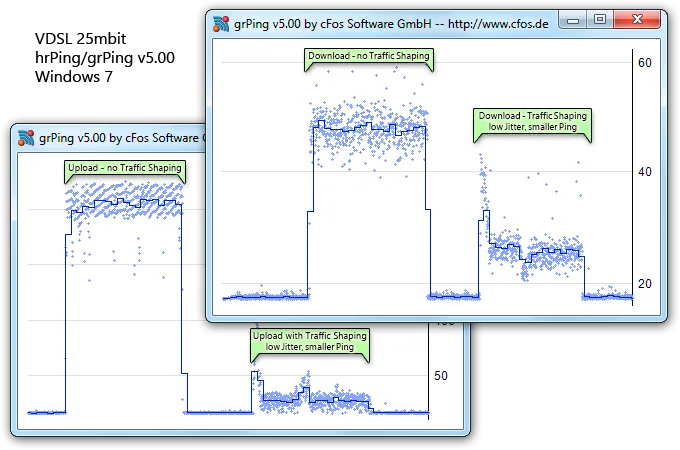
cFosSpeed uses Traffic Shaping to reorder Internet data packets in such a way that urgent traffic is transferred first and the rest of the data later. This results in significant reduction of latency (lag) and typically also results in connection speed up.
Internet Tuning / Traffic Shaping
- If ACKs are not sent fast enough, downloads may be slow during uploads (the classic Traffic Shaping).
- Windows TCP Auto-Tuning may result in too slow downloads. cFosSpeed’s RWIN expansion can increase the speed. cFosSpeed can also accelerate downloads for certain applications (see test results).
- cFosSpeed keeps the overall ping time low, even during heavy uploads and downloads.
Prioritization – Your important streams first
- With the cFosSpeed prioritization scheme you can always give all your programs full bandwidth, because cFosSpeed decides which streams must be prioritized.
- For example Game-Traffic, VoIP, or Audio/Video content will be prioritized higher than uploads / downloads.
- Your filesharing may use unlimited speed of your Internet connection, but it will be slowed down when you have important traffic.
- The whole prioritization scheme is configurable and you can change the prioritization on-the-fly.

Benefits
- Full download rate during upload
- Consistently quick response time of your Internet even under heavy load
- Substantially less lag in online games
- Improved VoIP speech quality
- Nice status window (with skins), so you always see what’s going on
cFosSpeed under the hood
Packet flow through the various modules of cFosSpeed
Mouse over/tap each box for further explanations.
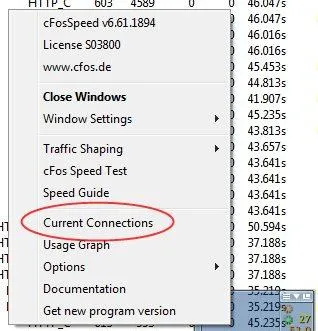
There are many different options for prioritizing a connection while it is currently running. For all of them, however, you need to right-click on your status window and click on Current Connections
Options
You can now choose whether you want to prioritize a connection, protocol or program temporarily, or permanently prioritize a protocol or program
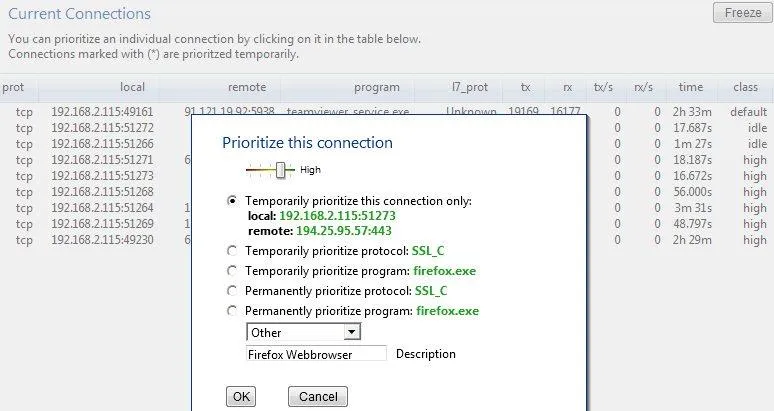
Prioritizing a connection temporarily
Prioritizing a protocol temporarily
Prioritizing a programme temporarily
Prioritizing a protocol permanently
Prioritizing a programme permanently
For each connection, you can adjust the following settings:
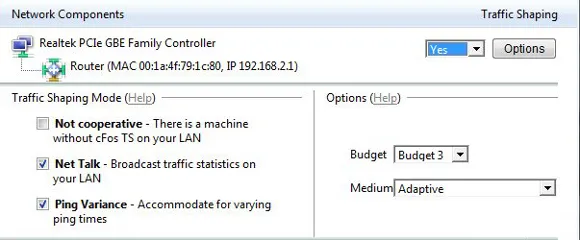
Traffic Shaping Mode (Multi-User version)
Not cooperative – There is a machine without cFos TS on your LAN
You use your connection with several other machines simultaneously and at least one of them has no cFos Traffic Shaping.
Net Talk – Broadcast traffic statistics on your LAN
To improve accuracy, send Traffic Shaping statistics to other PCs on your local (home) network. No data is sent to the Internet.
Ping Variance – Use advanced Traffic Shaping to accommodate for varying ping times
Gather ping statistics to accommodate for variation in ping times; especially useful for mobile/wireless connections.
Medium/Protocol
- Adaptive: cFos/cFosSpeed will adapt to your connection automatically. Use this setting only if you are not sure what your connection type is. Otherwise, select the setting that applies to your connection. The better the chosen setting fits your connection type, the lower ping times should be.
- DSL (PPPoE): Most widespread DSL protocol (commonly used in the USA, Germany, Eastern Europe, and other major markets).
PPPoE explanation @ wikipedia.org - DSL (PPPoA/Vcmux): Common standard in Great Britain.
PPPoA explanation @ wikipedia.org - DSL (PPPoA/LLC): Occasionally used in Great Britain
PPPoA explanation @ wikipedia.org - DSL (PPTP): Older DSL standard still in use in some parts of France.
PPTP explanation @ wikipedia.org - Cable: Internet via TV cable with bandwidth that may vary slightly according to usage and time of day.
Cable technique @ wikipedia.org - ISDN: 8 or 16 kbytes, bidirectional, PPP in HDLC frames
ISDN explanation @ wikipedia.org - IP over AAL5: IP data transfer via ATM
ATM Adaptation Layer @ wikipedia.org - RFC 1483/2684: DSL over ATM bridging
- Frame Count: Transfer speed varies with the number of data packets transmitted per time interval. Sometimes used in Greece.
- Mixed Raw IP/Frame Count: Downstream traffic is handled as in “Frame Count”, upstream traffic as in “Cable”. Used by some cable providers like ish.
Set up the right medium/protocol if you know exactly which transfer medium/protocol is used. If in doubt, use Adaptive.
How do I optimally calibrate cFos / cFosSpeed?
- Clear the traffic shaping data by clicking on “clear calibration data”
- Make a short full-speed download. (5-10 seconds)
- Make a longer full-speed upload (30 sec – 1 min).
It is important that this upload is as fast as possible, i.e., that the server you’re sending to is near and powerful (like your mail server or some fast FTP server). moreover, it is important that you have no downloads running while you do this upload. with an upstream of 256 kbit/s you need to send some 2 mbyte to the other side. - That’s it. The connection is well calibrated if you have a full-blast upload and still have low ping times (both can be watched in the status window).
DiffServ / DSCP tagging
Differentiated Services (DiffServ) is a Quality of Service (QoS) architecture. Usually, it is supported in closed domains (“DiffServ clouds”) like an organisation or a LAN. With DiffServ you can label each packet with a certain value (called Differentiated Services Code Point, DSCP) and that value is stored inside of the packet. So at the next hop of the packet, the value can be read and taken into account for further routing.
cfosSpeed supports for incoming packets (you can filter on the DSCP value) and on outgoing packets (you can set the DSCP value).
DiffServ labelling is useful in several scenarios:
- You have multiple machines that access the Internet and you use a router (boxed or Windows machine) to provide the connectivity to the Internet.
- You are part of an organisation that uses in-house DiffServ to divide its traffic into several classes.
- You use Windows for your desktop, but a Linux box for routing.
One problem with priorisation is that when you want to decide if a packet is to be prioritised or not you don’t have enough data, enough time, computational power or memory to do so. Routers are often small, very constrained embedded systems with few resources. But even if you use a full-grown Windows or Linux machine as a router some information about the data (like which program it was sent from) is already lost, since that information is not transmitted over the network.
So it is a good idea to label your packets at the origin and you can use cfosSpeed’s possibilities to accomplish that efficiently and very fine-grained (filter for programs, protocols, ports or manual filter expressions).
Here is how you do it. We assume that you have a Windows desktop whose traffic you want to prioritise (the “client”) and you have a router that routes your traffic (maybe among other traffic) to the Internet. Hopefully, that other traffic is also DS-labelled.
On your client you use cfosSpeed like everybody uses it and set up protocols, programs, etc. Furthermore, you set up some DSCP values. To do that click Start, programs, cfosSpeed, open console and enter “spd class”: you will see a listing of the traffic classes, like this:
    class highest -prio 100 -weight 400
    class higher -prio 90 -speed 40%,0 -weight 400
    class high -prio 80 -speed 40%,0 -weight 400
    class default -weight 100
    class low -prio 0 -speed 25%,-10 -weight 25
    class lowest -prio 0 -speed 25%,-30 -weight 6
    class drop
For each class you can set the DSCP value by the command “spd class C -dscp X” (sans quotes), where “C” is the class name and “X” is the DSCP value which is in the range of 0 and 63. The values are arbitrary, but 0 means “no DSCP set”. Other values might be in use in your organisation, ask your net admin. Make sure that class “highest” is sent out the fastest on your router and class “higher” still faster that “high”.
After you have set all the class values, a “spd class” might look like this:
    class highest -prio 100 -dscp 1 -weight 400
    class higher -prio 90 -speed 40%,0 -dscp 2 -weight 400
    class high -prio 80 -speed 40%,0 -dscp 3 -weight 400
    class default -dscp 4 -weight 100
    class low -prio 0 -speed 25%,-10 -dscp 5 -weight 25
    class lowest -prio 0 -speed 25%,-30 -dscp 6 -weight 6
    class drop
Now we have to switch off the traffic shaping on the client. Enter “spd set fixed 1;set txspeed 2g”. This will set the send speed to almost infinite, so no packets are queued locally.
On your router you can use the DSCP values to put the packets into the corresponding traffic class. Assuming the router uses cfosSpeed, you have to modify the filter settings to make use of the client’s DSCP values. Again (now on the router) click Start, programs, cfosSpeed, open console and enter “spd filter”. You will see a listing of all filter rules. It will contain some lines like this:
    18 rt-  -highest -c highest
    19 rt-  -higher -c higher
    20 rt-  -high -c high
Assuming the -highest filter is the first non-firewall filter and has number 18, enter the following commands:
    spd filter -I 18 -dscp 1 -c highest
    spd filter -I 19 -dscp 2 -c higher
    spd filter -I 20 -dscp 3 -c high
    spd filter -I 21 -dscp 4 -c default
    spd filter -I 22 -dscp 5 -c low
    spd filter -I 23 -dscp 6 -c lowest
This will sort all packets with DSCP values into the corresponding traffic queues on the router.
If you use some other system that Windows/cfosSpeed you have to find out how to use the DSCP value for routing. Under Linux iptables might be able to do that.
That’s it! All cfosSpeed settings made have been automatically saved and are active right away.
Additional comments:
DSCP tagging can be useful for load balancing as well. If you own a router that can utilise more than one Internet line at the same time, it might have a way to split the traffic on the various lines. A good solution might be to do DSCP tagging of traffic with cFosSpeed on the machine where the traffic originates and for the router to use the DSCP tags to send the traffic to one of the multiple lines to the Internet.
Links:
>RFC 2474—Definition of the Differentiated Services Field (DS Field) in the IPv4 and IPv6 Headers
Bittorrent
Fast BitTorrent download
Again and again the problem arises that with BitTorrent downloads Traffic Shaping does not function well. We checked the problem and found out here through tests, that the RX-rate drops, if you download with too many connections simultaneously.
The result of our tests is: Downloads are substantially faster and Ping-times better if one limits the amount of the connections to for example 50 in the BT-client.
Below follows documention regarding the issue. Unfortunately so far we haven’t found the exact reason for this problem.
Tests were run on a DSL-16000/1000 connection provided by Deutsche Telekom with a 1950kb/128kb flow-rate. Testing occured via constantly reloading Debian CD-Images with uTorrent 1.6.1 every 30 minutes.
This is what the transfer looks like with the limitation of 50 connections maximum:
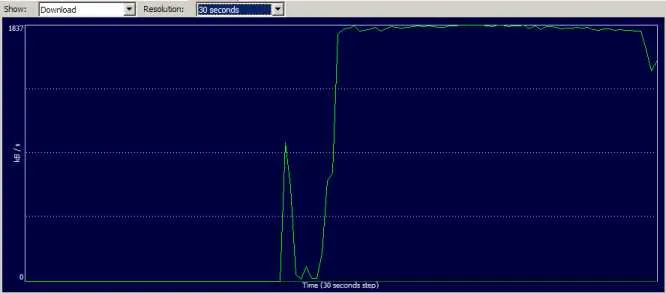
The mean DL-rate scored at 1613 kb/sc, the mean ping at 63 msec.
And with 850 connections:
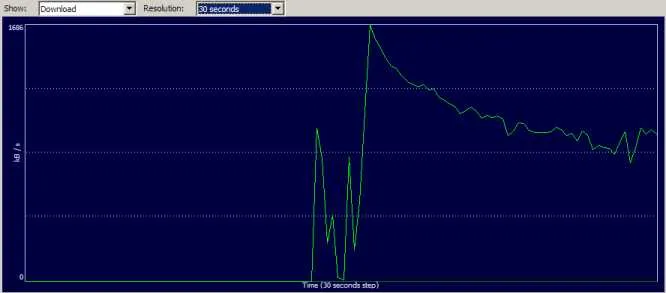
The mean DL-rate scored at 1009 kb/sec, the mean ping at 97 msec.
Meaning: It is neither advisable for appropriate ping times nor for fast downlaods. On top of this the many connections also play out on CPU load (with about 50% used rather than about 25%).
This effect has emerged earlier when dealing with a DSL-2000 connection and azureus. This does not seem to be the cause here, though. Furthermore it does not make any difference whether RX-Shaping is switched off or on.
We are continually working on an explanation as well as a solution for this problem. Until then we can offer only one measure, that is, however, very simple: Limit the amount of connections. We recommend a value of 50. Torrent clients will only decrease the amount of connections when a download is completed or if you restart.
Windows – Balloontip, at over 30 connections
cFos and cFosSpeed generate a Windows – Balloontip, once so many connections transfer data that RX-shaping can hardly stop them anymore. This is the case at 30 or more connections.
cFos and cFosSpeed always generate these baloon tips if rx-shaping has reduced connections to a maximum for 10 seconds at a time. If other connections are added at this point cfos and cfosspeed respectively is no longer able to keep the port regarding rx from being congested and ping rates increase.
If this balloon is, however, undesired and the user is not able or does not want to reduce the amount of used connections he or she can switch off the ballon with the command spd gset balloon_many_cons 0 -save.