

Skins
Display traffic shaping statistics on your phone
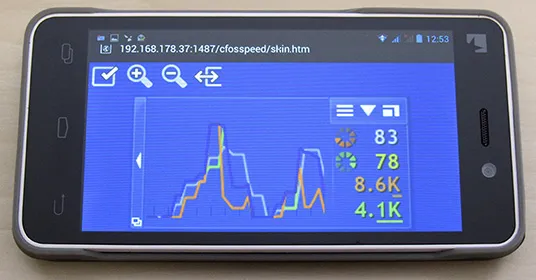
Beginning with v9.05 build 2090 cFosSpeed has a build-in web server, so you can display the status window on your phone or tablet, in addition to your desktop. This is especially helpful for fullscreen applications like games or videos. Here is how to configure it:
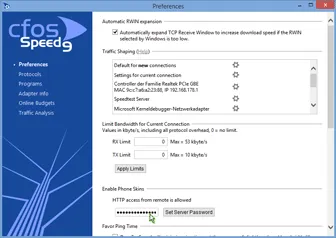
- Start “Options/Settings” from the cFosSpeed context menu and set a server password in the “Preferences/Enable Phone Skins” dialog. The web server will need authorization if you access it from another machine than your local computer.
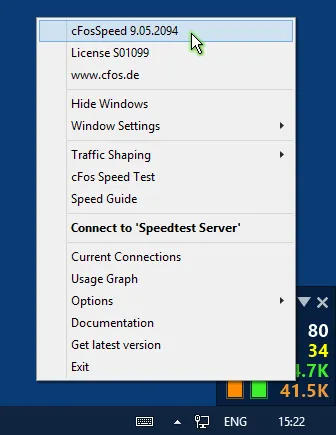
- Open the context menu and select the first option (cFosSpeed vX.XX…) to display your local IP addresses.
- Open the browser on your phone or tablet and enter the following address: http://[Your IP address]:1487/cfosspeed/skin.htm. [Your IP address] is usually the first listed address from step 2, but you can try all others if the first doesn’t work.
- Now fill the authentification dialog with “cfosspeed” as username and the server password you configured under “Preferences/Enable Phone Skins” as password.
Note: You can also view and prioritize your current connections from your phone or tablet. Simply open http://[Your IP address]:1487/cfosspeed/console.htm in your browser. This dialog works as if started from the cFosSpeed status window or context menu.
Note: You need Windows 7 or higher to use the built-in web server.
cFosSpeed Status Windows
All you need to know about the cFosSpeed Status Windows and Skins
The cFosSpeed Status Windows display important statistics about your current Internet connection. You should choose the skin most useful to you, e.g. the icon skins which integrate into the task bar or the Traffic Analysis skin with real-time statistics about your current different traffic types. Please vote on the different skins. This will help us when designing the next skin window.
Metro Skin
Deactivating the cFosSpeed status window
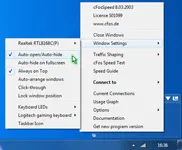
You can deactivate the cFosSpeed status window by right-clicking on it, selecting Window Settings and then deactivating “Auto-show/Auto-hide”.
Default-Skin (graphical)
All you need to know about the cFosSpeed Status Windows and Skins
The cFosSpeed Status Windows display important statistics about your current Internet connection. You should choose the skin most useful to you, e.g. the icon skins which integrate into the task bar or the Traffic Analysis skin with real-time statistics about your current different traffic types. Please vote on the different skins. This will help us when designing the next skin window.
Default-Skin (graphical)

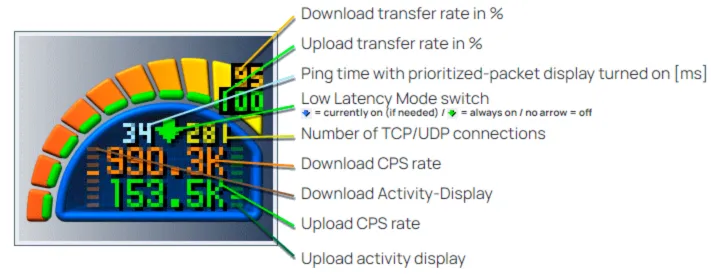
The standard skin has been designed to track the data stream graphically.
Ping times are represented by green, yellow, or red waves in the standard skin’s graphical display. Actual ping times depend in significant part on the number of simultaneous up- and downloads. If this number rises, latency will likely increase as well. To reach maximum transfer rates during download, the ping time for each download must therefore be raised briefly.
Switching between Graphical and Numerical Display of the Default Skin:
By clicking on the corresponding buttons, it is possible to toggle between graphical and numerical skin display.

Numerical Display
Deactivating the cFosSpeed status window
You can deactivate the cFosSpeed status window by right-clicking on it, selecting Window Settings and then deactivating “Auto-show/Auto-hide”.
Aquarium Icon Skin
All you need to know about the cFosSpeed Status Windows and Skins
The cFosSpeed Status Windows display important statistics about your current Internet connection. You should choose the skin most useful to you, e.g. the icon skins which integrate into the task bar or the Traffic Analysis skin with real-time statistics about your current different traffic types. Please vote on the different skins. This will help us when designing the next skin window.
Icon skin
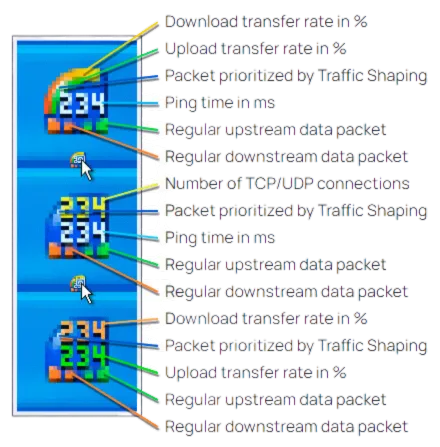
You can switch between the 3 states of the Icon Skin and point out different Displays. The position of the switch is in the middle of the skin (see picture).
Deactivating the cFosSpeed status window
You can deactivate the cFosSpeed status window by right-clicking on it, selecting Window Settings and then deactivating “Auto-show/Auto-hide”.
Liquid Crystal Skin
All you need to know about the cFosSpeed Status Windows and Skins
The cFosSpeed Status Windows display important statistics about your current Internet connection. You should choose the skin most useful to you, e.g. the icon skins which integrate into the task bar or the Traffic Analysis skin with real-time statistics about your current different traffic types. Please vote on the different skins. This will help us when designing the next skin window.
Liquid Crystal Skin
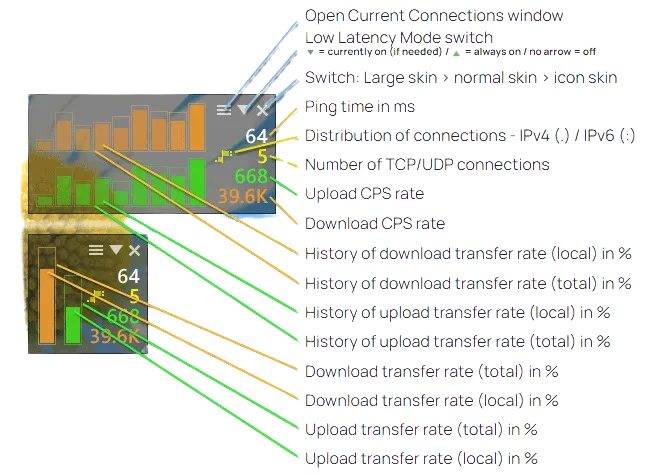
Transfer rate in %
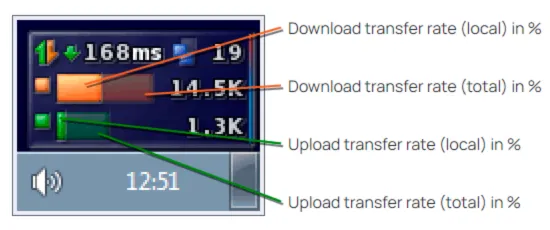
The vertical bar graphs scrolling from the right to the left show the history of transfer as percentage of the maximum reached up-/download transfer rate since the last installation or calibration of cFosSpeed. The total and local transfer rates are related to running cFosSpeed in multi-user mode. Local shows the transfer rates for the current computer only, while total – the amount of traffic within the local network.
The other display methods are the same as in the Liquid Crystal History skin
The background
The transparent background of the status window can be replaced by an opaque one by applying (under Vista and Windows 7 with admin rights) the following changes to the file net.ini in the directory [cFosSpeed install directory]\liquid_crystal_skin:
line 7: background=background.tga -> ;background=background.tga
line 8: ;background=matrix.tga -> background=matrix.tga
The file matrix.tga (in the same directory) can be modified to your needs by using a suitable graphics program.
Deactivating the cFosSpeed status window
You can deactivate the cFosSpeed status window by right-clicking on it, selecting Window Settings and then deactivating “Auto-show/Auto-hide”.
Liquid Crystal History Skin
All you need to know about the cFosSpeed Status Windows and Skins
The cFosSpeed Status Windows display important statistics about your current Internet connection. You should choose the skin most useful to you, e.g. the icon skins which integrate into the task bar or the Traffic Analysis skin with real-time statistics about your current different traffic types. Please vote on the different skins. This will help us when designing the next skin window.
Liquid Crystal History Skin
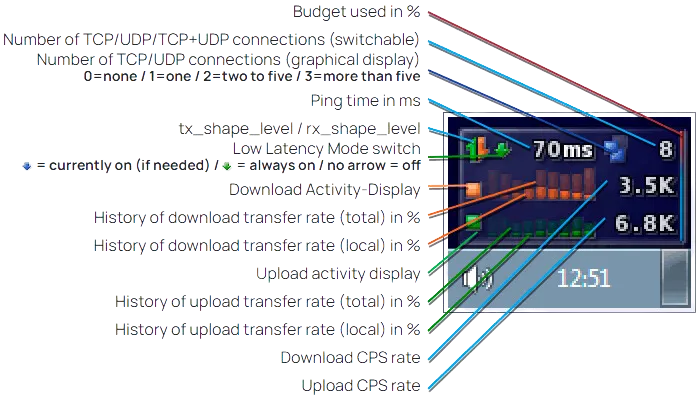
Shape level
The brighter the indicator is visible the more Traffic Shaping is working for each of the transfer directions.
Transfer rate in %
The horizontal bar graphs for upload and download show the current transfer as percentage of the maximum reached up-/download transfer rate since the last installation or calibration of cFosSpeed. The total and local transfer rates are related to running cFosSpeed in multi-user mode. Local shows the transfer rates for the current computer only, while total – the amount of traffic within the local network.
The background
The transparent background of the status window can be replaced by an opaque one by applying (under Vista and Windows 7 with admin rights) the following changes to the file net.ini in the directory [cFosSpeed install directory]\liquid_crystal_skin:
line 7: background=background.tga -> ;background=background.tga
line 7 8: ;background=matrix.tga -> background=matrix.tga
The file matrix.tga (in the same directory) can be modified to your needs by using a suitable graphics program.
Deactivating the cFosSpeed status window
You can deactivate the cFosSpeed status window by right-clicking on it, selecting Window Settings and then deactivating “Auto-show/Auto-hide”.
Traffic Analysis Skin
All you need to know about the cFosSpeed Status Windows and Skins
The cFosSpeed Status Windows display important statistics about your current Internet connection. You should choose the skin most useful to you, e.g. the icon skins which integrate into the task bar or the Traffic Analysis skin with real-time statistics about your current different traffic types. Please vote on the different skins. This will help us when designing the next skin window.
Traffic Analysis Skin
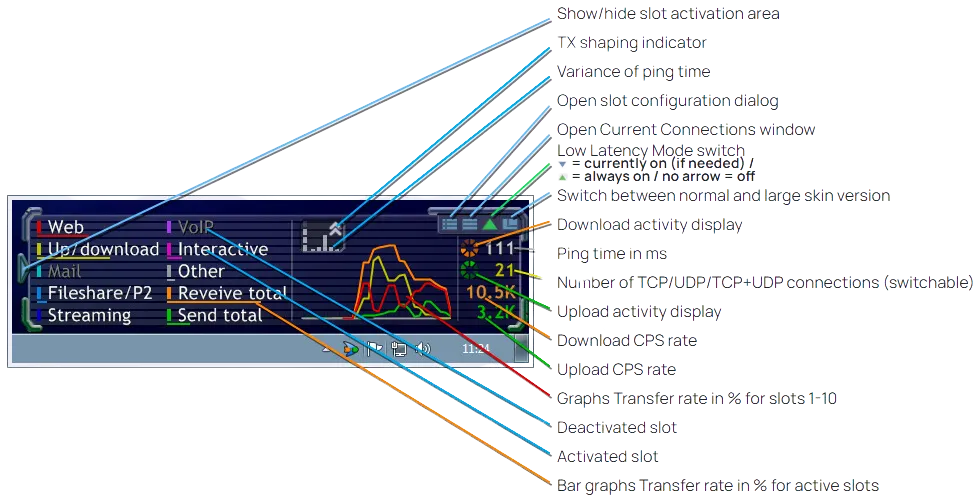
Transfer rate in %
The slot graphs show the current transfer rates as percentage of the maximum reached transfer rate since the last installation or calibration of cFosSpeed.
The slots
The configuration of slots 1-10 (as a part of the cFosSpeed settings) can be accessed by either clicking on the Open slot configuration dialog button of the skin or using the Options/Settings menu entry of the systray icon. Each slot can be configured and renamed individually.
The background
The transparent background of the status window can be replaced by an opaque one by applying (under Vista and Windows 7 with admin rights) the following changes to the files net.ini and net_l.ini in the directory [cFosSpeed install directory]\traffic_analysis_skin:
line 7: background=background_blank(_l).tga -> ;background=background_blank(_l).tga
line 8: ;background=background_color(_l).tga -> background=background_color(_l).tga
The files background_color(_l).tga (in the same directory) can be modified to your needs by using a suitable graphics program. The transparent area of the images must not be changed.
Deactivating the cFosSpeed status window
You can deactivate the cFosSpeed status window by right-clicking on it, selecting Window Settings and then deactivating “Auto-show/Auto-hide”.
Traffic Analysis Skin
All you need to know about the cFosSpeed Status Windows and Skins
The cFosSpeed Status Windows display important statistics about your current Internet connection. You should choose the skin most useful to you, e.g. the icon skins which integrate into the task bar or the Traffic Analysis skin with real-time statistics about your current different traffic types. Please vote on the different skins. This will help us when designing the next skin window.
Traffic Analysis Icon Skin
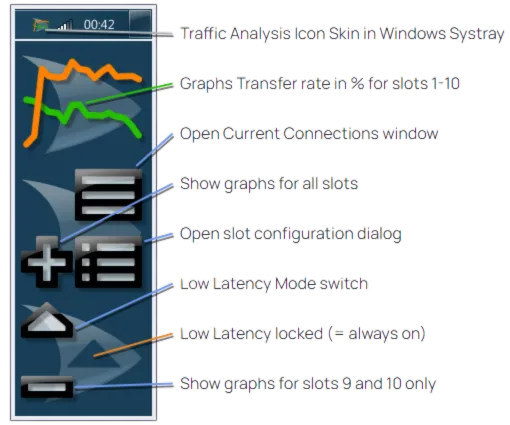
Transfer rate in %
The slot graphs show the current transfer rates as percentage of the maximum reached transfer rate since the last installation or calibration of cFosSpeed.
The slots
The configuration of slots 1-10 (as a part of the cFosSpeed settings) can be accessed by either clicking on the Open slot configuration dialog button of the skin or using the Options/Settings menu entry of the systray icon. Each slot can be configured and renamed individually.
Traffic Analysis Net Talk Icon Skin
Instead of displaying the slots 1-10, this skin shows the local up- and download transfer rates in bright green and orange while the total rates (within your local network) in darker green and orange.
Deactivating the cFosSpeed status window
You can deactivate the cFosSpeed status window by right-clicking on it, selecting Window Settings and then deactivating “Auto-show/Auto-hide”.
Traffic Analysis Insight Skin
All you need to know about the cFosSpeed Status Windows and Skins
The cFosSpeed Status Windows display important statistics about your current Internet connection. You should choose the skin most useful to you, e.g. the icon skins which integrate into the task bar or the Traffic Analysis skin with real-time statistics about your current different traffic types. Please vote on the different skins. This will help us when designing the next skin window.
Traffic Analysis Insight Skin
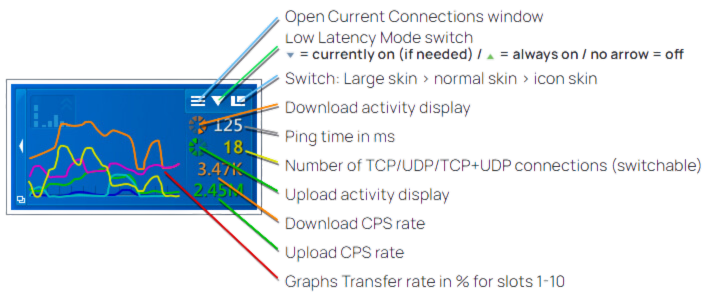
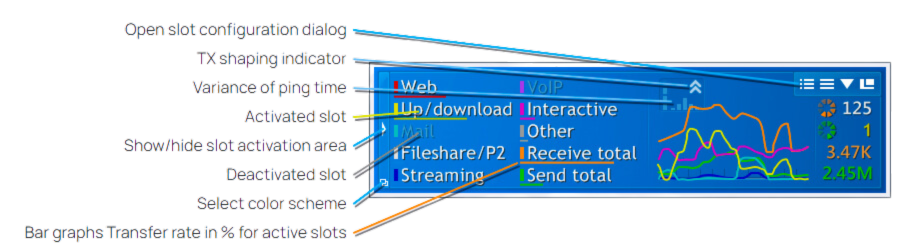
Transfer rate in %
The slot graphs show the current transfer rates as percentage of the maximum reached transfer rate since the last installation or calibration of cFosSpeed
The slots
The configuration of slots 1-10 (as a part of the cFosSpeed settings) can be accessed by either clicking on the Open slot configuration dialog button of the skin or using the Options/Settings menu entry of the systray icon. Each slot can be configured and renamed individually.
The background
The transparent background of the status window can be replaced by an opaque one by applying (under Vista and Windows 7 with admin rights) the following changes to the files net(_n).ini and net(_n)_l.ini in the directory [cFosSpeed install directory]\ta_insight_skin:
line 7: background=background_blank(_l).tga -> ;background=background_blank(_l).tga
line 8: ;background=background_color(_l).tga -> background=background_color(_l).tga
The files background_color(_l).tga (in the same directory) can be modified to your needs by using a suitable graphics program. The transparent area of the images must not be changed.
User Skin/Keyboard LEDs
All you need to know about the cFosSpeed Status Windows and Skins
The cFosSpeed Status Windows display important statistics about your current Internet connection. You should choose the skin most useful to you, e.g. the icon skins which integrate into the task bar or the Traffic Analysis skin with real-time statistics about your current different traffic types. Please vote on the different skins. This will help us when designing the next skin window.
Shinnher’s Skin
This compact skin was designed by a cFosSpeed user, who just modified the Liquid Crystal.
You can download the Skin from here: >Shinnher’s Skin
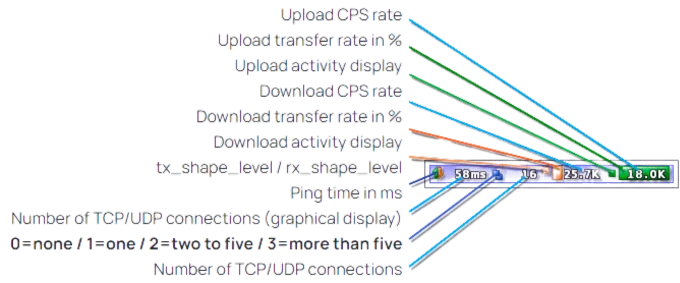
Use keyboard LEDs to display Traffic Shaping information
cFosSpeed can use the Num Lock and Scroll Lock LEDs to display information about the current Internet traffic. This is especially useful for gamers and users of fullscreen application, who can’t see the cFosSpeed status window. By using the keyboard LEDs the most important traffic statistics are indicated: >Keyboard LEDs
Deactivating the cFosSpeed status window
You can deactivate the cFosSpeed status window by right-clicking on it, selecting Window Settings and then deactivating “Auto-show/Auto-hide”.