Features

Online Budgets

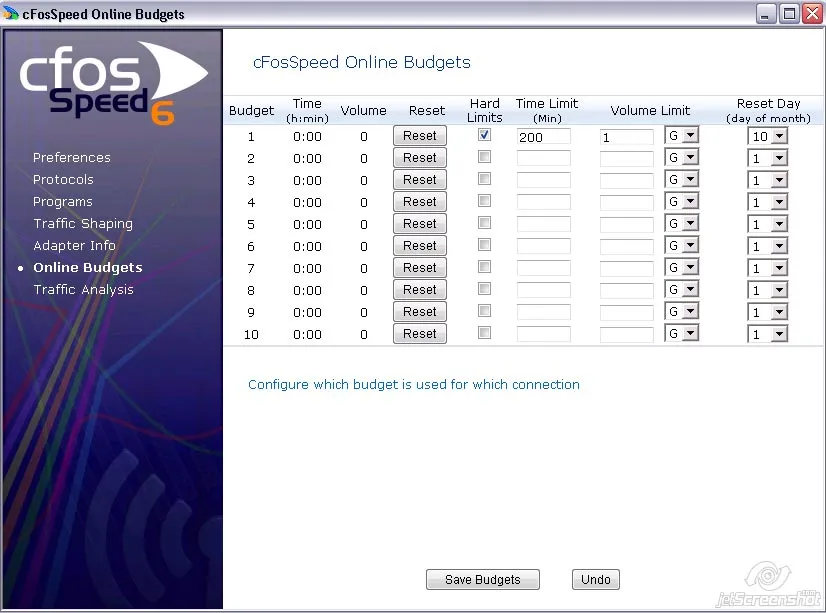
Since cFosSpeed version 3.10 you can individually config and administrate up to 10 data and time-budgets.

You can access the configuration dialog via the cFosSpeed Menu:
·>Options ·>Online Budgets

For each Budget you can set a time, a data volume budget or both. In addition you have the possibility to set hard limits which allows you to have full control. You can also choose a reset day for the budgets or reset them manually.

To assign a budget to a certain connection use the cFosSpeed connection dialog at
·>Options ·>Traffic Shaping ·>Options

The budgets are visualised by usage graphs.

Example

Main Features

Connections


Broadband: Cable and DSL


Narrow band: Modem and ISDN


Mobile (LTA, UMTS, WiMAX, HSDPA, W-CDMA, WCDMA, CDMA, CDMA2000, 3G Mobile, HSCSD)


Media:

  • VDSL
  • DSL, PPPoE
  • DSL, PPPoA (Vcmux and LLC
  • DSL, PPTP
  • Cable
  • ISDN
  • IP over AAL
  • RFC1483/2684 bridged

Extras


Skins


Status window on your phone/tablet


Online Budgets


Usage Graph


Overview of connections


Firewall


Data and packet logging


32-Bit and 64-Bit version


32+ languages

Routing


Router and dial-up connections


LAN and WLAN


Router and Bridge-Mode


VPN


Multiple connections simultaneously


Adjustable routes


Several IP adresses per adapter

Connections

To configure settings for your connections please open the regarding window via Settings/Traffic Shaping. Here you will find an overview over all connections. The table ‘Dial-up Connections’ shows all Windows Broadband and Dial-Up connections. The table ‘Network Components’ shows all network components and routers. For each connection you can configure whether to achtivate (Yes) or deactivate (No)Traffic Shaping. As a third option you can opt to always be asked first(Ask) or use the default mode(default) with the routers.

Please click on Settings/Preferences to open the extended settings window. For this connection you can choose a budget, set the medium and the Traffic Shaping modus.

example

Game Analyzer

Online games can be demanding. If you are in an important boss fight with a lot of action, players, and monsters on the screen and somehow the action gets jittery, the question is: Why?

Does your Internet connection have too much latency? Is your CPU or one of its cores at its limit? Is your graphics card the limiting factor? Do you have too little system memory so paging slows your PC down? Does some program in the background unexpectedly use a lot of Internet bandwidth?

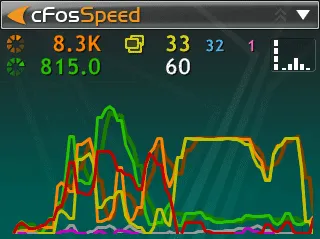
cFosSpeed Game Analyzer helps you to find out. After a demanding event, you can open the Game Analyzer page and see a history of the most important performance statistics of the past 5 minutes.

The "Ping Stats" graph shows cFosSpeed's ping measurements of your Internet connection to the next hop, i.e., it displays if your part of the Internet connection is congested. The colors green, yellow and red indicate how high your ping is. Blue dots indicate the RTTs to TCP connection endpoints. They are high, if the destination server (e.g., the game server) answers slowly or if the route to it is congested.
The "CPU Usage" graph shows CPU utilization in green and the maximal utilization of a single CPU core in light green. Sometimes games cannot scale well across multiple CPU cores and one core becomes the limiting factor.
The "GPU Usage" graph shows the utilization of your graphics card.
The graph "Line Speed" shows the amount of receiver and transmitter traffic from and to the Internet. This graph allows you to see if Internet bandwidth is used up while you are gaming. LAN traffic is not the issue here, since the bandwidth of the network adapter is typically far greater than the bandwidth of the actual Internet connection and high LAN traffic can be handled by your system without impacting the Internet connection. Thus, only Internet bandwidth is displayed. Please note: The cumulative traffic of all PCs with cFosSpeed installed is shown in this graph by means of cFosSpeed's net talk feature.

So, play your game and when things don’t perform as expected, cFosSpeed Game Analyzer has the most important readings at a quick glance, especially after a big fight.

Usage Graphs

cFosSpeed can show a Usage Graph for online budgets, protocols or programs. You also can choose if the display refers to the current month, to the past month, ot the past 3 month or to the past 12 month. Further you can choose the following ways of display:

  • rx – display: amount of download data
  • tx – display: amount of upload data
  • rx+tx – display: sum of amount of upload and download data
  • sum – display: total amount of data is shown in a continuous sum.
Online Budgets

Steps to set a Usage Graph for a online budget:

  1. At ‘Settings/Traffic Shaping’ you can assign a budget X to your connection.
  2. Now open the Usage Graph window by ‘Usage Graph’.
  3. Select your display colour and choose ‘Online budgets’ from the list.
  4. Into the sublist choose the budget number X.
Protocols/Programs

Steps to set a Usage Graph for a protocol or a program:

  1. Open the Usage Graph window by ‘Usage Graph’.
  2. Select your display colour and choose ‘Protocols’ or ‘Programs’ from the list.
  3. Into the sublist choose the protocol or the program.
Example

Ip Blocking List

IP-range lists

In order to filter for huge amounts of IP-ranges, cFosSpeed has support for IP-range files like ipfilter.dat the same way IP-Blockers like Protowall and Peerguradian support them. All traffic to or from one of the listed addresses is blocked. We call those lists “iplists”.

cFosSpeed supports these iplists through two filter expressions: -s-iplist and -d-iplist. They are already set by default in settings.ini. -s-iplist matches the source IP address against a given list, -d-iplist the destination IP address.

The -s-iplist and -d-iplist filter accept the iplist name as second parameter. The default name used in settings.ini is “ipfilter”. In the [iplist] section in settings.ini or user.ini you must specify the iplist names with the corresponding IP block list files that contain the IP-ranges to be blocked. These block lists are not supplied with cFosSpeed.

The [iplist] section contains lines in the format “listname=filename”. ‘listname’ is used to filter for the IP-addresses listed in ‘filename’. You can have more than one list with different names and each list can be made up of more than one file. When compiling the lists, duplicate entries are removed and the whole list is sorted and optimized. You can put this section in user.ini, so it will not be overwritten with the next cFosSpeed update.

An example excerpt from settings.ini:

    filter=-tx -d-iplist ipfilter -c drop
    filter=-rx -s-iplist ipfilter -c drop

    [iplist]
    ipfilter=c:\text\ipfilter.dat
    ipfilter=c:\text\my.dat

This will read both files and make them available as iplist named ‘ipfilter’. This iplist is used by default to filter packets to the drop queue, i.e. to discard them. However, this rule is not active by default, since no IP block list file is set up.

Currently two IP-range file-formats are supported. This is the Emule format:

    from-address - to-address [, rest-ignored...]

Example:

    0.0.0.1 - 3.255.255.255 , blabla

And this is the Protowall/Peerguardian format:

    ignored-text:from-address - to-address

Example:

    blabla:0.0.0.1 - 3.255.255.255

The block lists can be quite big and consume a lot of memory. Each line with an IP-range needs 8 bytes. We worked with lists that needed 2mb of memory. The process of reloading them will, for a short time, allocate three times as much.

Since the lists are so big, they have to be read into memory from disk and compiled. This can take some short time, so it is only done when cFosSpeed is loaded or on demand. To re-load the block lists on demand use “spd reload -iplist”.

Blocked packets will be dumped to text file FWLOG.TXT like all other firewalled packets. You can switch off the dumping by setting “spd gset fwlog 0”.

You can list the iplists currently loaded with the command “spd showiplists”. The output looks something like this:

    ipfilter:
       0x8218a4a0, active 1, refcnt 2, 3 entries

It shows that the list named “ipfilter” is loaded to a certain memory address, is active, has reference count 2 (i.e. is used two times, most likely from two filter rules) and has 3 entries (i.e. three IP ranges).
Keyboard LEDs

Use keyboard LEDs to display Traffic Shaping information

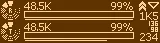
cFosSpeed can use the Num Lock and Scroll Lock LEDs to display information about the current Internet traffic. This is especially useful for gamers and users of fullscreen application, who can’t see the cFosSpeed status window. By using the keyboard LEDs the most important traffic statistics are indicated:

ping:
off, fair = slow blink, bad = fast blink
warns you if the ping time is too high
pcnt:
fast blinking as packets are counted
informs you about any traffic to/from the internet
ts_effect:
fast blink when a TX packet is prioritized
one of the ways to indicate the effects of Traffic Shaping
speed:
maximum of total_rx_speed and total_tx_speed, 0-32%: off, 33-65%: slow blink, 66-98%: fast blink 99-100%: on
informs you, when you or another user / application uses (too) much bandwidth
ccnt:
fast blink whenever the sum of TCP and UDP connections changes
you stay informed if some new connection is established
variance:
0-15ms: off, 16-127ms: slow blink, 128-511ms: fast blink, 512ms or more: on
informs you if line conditions (e.g. mobile connections) cause high ping variance

You can select the Num Lock and Scroll Lock LEDs to display any of the above values.

Hint: The actual script for controlling the keyboard LEDs is a javaScript, called led.js. So if you like to display other variables or use a completely different LED blinking scheme, feel free to change it to your needs.

cFosSpeed in other languages

  1. Download the language files and unzip them. You should get two text files.
  2. Put these text files in the same directory as the file cfosspeed.exe that you’ve downloaded from our web site.
  3. Execute cfosspeed.exe and select your language in the welcome dialog.
  4. Continue the installation.
  5. After a successful installation you can also change the language from the pop-up menu of the cFosSpeed taskbar icon.
Language Files
Disclaimer:

As a service to you, we have made the following cFos/cFosSpeed localizations available for free download. Since these free expansions have been created by customers for customers, cFos Software GmbH does neither assume liability nor provide technical support for any of them.
For any questions concerning a specific localization, please do contact the author directly. However, should you come across any significant translation errors, omissions or other irregularities (intentional or otherwise), please let us know briefly so we can check up on it.

Logitech keyboard support

cFosSpeed supports the Logitech gamer keyboards G19, G15, G13, G510 and compatible models. In order to use the display of such a gaming keyboard, the Logitech Gaming Software V7.00 or higher must be running. Then you can navigate to the cFosSpeed window settings menu and activate Logitech display support. Now the cFosSpeed status window is displayed on the keyboards display instead of the Windows desktop.

We suggest you use the following skins.

Logitech G19 skin


Logitech G13/G15/G510 skin
Logitech skins on YouTube

Translate cFosspeed into your language

cFosSpeed Language Files

Installation Instructions

  1. Download the language files and unzip them. You should get two text files.
  2. Put these text files in the same directory as the file cfosspeed-v500.exe that you’ve downloaded from our web site.
  3. Execute cfosspeed-v500.exe and select your language in the welcome dialog.
  4. Continue the installation.
  5. After a successful installation you can also change the language from the pop-up menu of the cFosSpeed taskbar icon.

Writing a cFosSpeed multi-language file for your own language

All cFosSpeed text shown on screen is stored in so called multi-language files – cfspdiml.txt for the installer and speedml.txt for the daemon program. To add text in another language, new cfspdiml_*.txt and speedml_*.txt files need to be created. Here, the asterisk (*) is just a placeholder for the abbreviation of the language used. Thus, cfspdiml_it.txt and speedml_it.txt would be text files for an Italian version.

Note that it is, for instance, perfectly OK to have just the daemon text translated. In that case, only a corresponding speedml*.txt file would be required. Once created, any new language file(s) are simply copied to the installer or the installation directory.

Multi-language files must be saved in Unicode format (both UTF-16 and UTF-8 are supported). This can, for instance, be done by using the Windows Notepad text editor.

Each multi-language file has the following structure:

Note that a line starting with a slash ‘/’ is merely a comment, meaning its content will be ignored.

Before any keys can be defined, the appropriate Windows identifier for the new language needs to be specified first, by writing

#language <Windows id>

on a single line (e.g., “#language 1033” for English). A list of Windows language identifers can be found here. You can also use hexadecimal format, ie. “#language 0x0409” for English.

Now, text keys and the text they each represent can be specified, using the format below:

key = "Text";

Keys and corresponding text should be taken from an existing multi-language file and then be translated. The following rules apply:

  • Text must always be in quotes (“)!
  • For better readability within the multi-language file, individual text entries can run more than one line, but must be put in quotes on each line like this:
    key1 = "The text for key1 starts here "
    "continues here "
    "and ends here.";

    Keep in mind that line breaks in a text definition do in no way correlate with line breaks actually shown on screen. Hence, the example above would still be displayed as a single line of text. Note as well that the last (and only the last) line of text must end with a semicolon (;).
  • Explicit line breaks within a text can be specified by entering \n. Line breaks in a text should kept in the translation.
  • A backslash \ is specified by two backslashes \\.
  • %s and %? are both placeholders for text or numbers, which will be filled in at their position at run time. For example, the key for
    welcome_line = "Welcome to %? v%?!";
    could be displayed as “Welcome to cFosSpeed v1.05!” depending on the product and its current version number. In text containing more than one %?, the order of placeholders cannot be changed.
  • To allow repeated use of a placeholder within a text or to have the order of placeholders changed, some text may contain placeholders like %1, %2, %3, ... For example, the key for
    welcome_found_dir = "An existing installation of %1 v%2 has been detected in the directory %3.";
    may be changed to
    welcome_found_dir = "In the directory %3 has been found an existing installation of %1 v%2.";
    Again, if you are unsure what a placeholder stands for, feel free to contact us.

We’d like to give you, the translator, credit for your work. Therefore there are two special language keys available only for user-created multi-language files.

  • translator_name = "Your name";
  • translator_msg = "Your message";

The translator name will be displayed in the cFosSpeed daemon language menu. The translator message will be displayed in a Windows message box if that language is selected in the cFosSpeed daemon language menu.

Net-Talk: Multiple cFosSpeeds on your LAN

Starting with version 5.13, cFosSpeed can send and receive statistical information about the traffic it is transmitting to other cFosSpeed drivers on the same LAN. The goal is to improve accuracy of multiple cFosSpeed drivers. If cFosSpeed knows about the traffic of other members of your LAN that are sending their traffic over the same router, it can shape more accurately. For instance, the measurement of ping variation depends on the fact that ping times were measured when no one else was transmitting any data.

One other nice advantage of Net_Talk is that you can see in your skin window the overall traffic of other members on your LAN. This might help to understand why a transfer is currectly very slow.

cFosSpeed with Net_Talk enabled will broadcast its statistics to all other members of your LAN 5 times per second. Statistics are transferred so often, so each member has recent data when it is doing shaping decisions. Data is transmitted in one UDP packet of about 1400 bytes in size. The packet is sent with TTL 1 to further insure that it can not be routed outside of your network. If you disable Net_Talk cFosSpeed will still listen for incoming Net_Talk data and use it.

Net_talk packets are never sent to the WAN adapter (Dial-Up networking) or with NDIS 6 to a WWAN adapter. That means that in a LAN, where each machine has cFosSpeed installed, but each connects to the Internet via Dual-Up Networking independently, instead sharing the same router, there will be no Net_Talk support. You do need to use cFosSpeed in “router mode” to use Net_talk and only the PCs that share the same router will participate in Net_talk.

There are some settings around Net_Talk:

Switch on or off Net_Talk for the current connection:
Enter “spd set net_talk 0” to switch it off or “spd set net_talk 0” to switch it on.
Switch on or off Net_Talk for new connections:
You can set the default Net_Talk setting for connections that have not yet been used and thus have not yet an entry in DATA.INI. To set that value enter “spd gset net_talk_default 0 -save” to start new connections with Net_Talk enabled or “spd gset net_talk_default 0 -save” to start with it disabled.
Change the UDP port number on which the statistics are transmitted:
Enter “spd gset net_talk_port PPP -save” to set transfer from/to port number PPP. The default port number is 889. If you change this value, you have to change it for all members on your LAN.

To see which other members on the LAN use cFosSpeed, you can use the “spd ts” or “spd talkstat” command. Output looks like this:

    address         received last      version    LL method       shaper ping   offset

    me                 60471 0s ago    5.13.1675   0 pppoe             2

    sent blocks: 60471
    

“LL” shows if that member is using low latency. “ping” means the time from sending a net_talk packet to receiving a ping answer on your LAN (don’t confuse this with the ping time to a machine on the Internet.)

Task Offloading

Although cFosSpeed supports task offloading, it depends on a couple of factors:

  • The network adapter must support it.
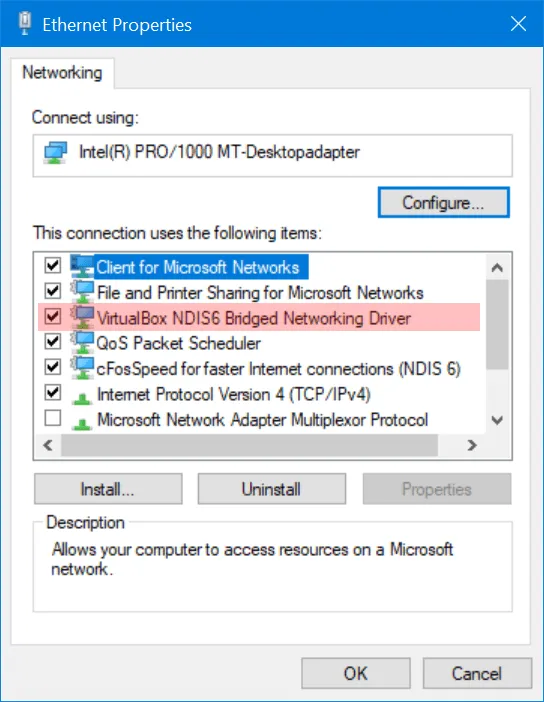
  • There must not be other drivers in the stack which prevent it, e.g. certain anti-virus filter drivers, VMware or Virtual Box virtual network drivers, Wireshark packet capture. Newer drivers may work, but you have to check it out for yourself by opening the network adapter dialog and unchecking drivers.
    Note: For configuration changes to become effective, you need to reboot your system.

  • There may only be newer network drivers in the stack, at least NDIS 6.30.

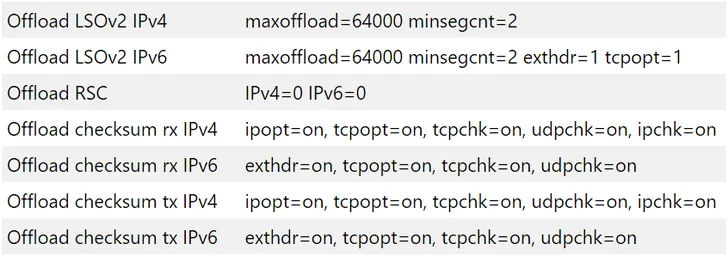
You can check, if task offloading is enabled by checking the flags for the active adapter in the cFosSpeed settings (Adapter Info): The following flags should be on for IPv4 / IPV6 receive and transmit: tcpchkudpchk and for IPv4 also ipchk.

For Large Segment Offloading “Offload LSOv2 IPv4” and “Offload LSOv2 IPv6” should have a minsegcnt of 2 or more.
Currently Receive Segment Coalescing is only active in expensive adapters. If enabled, “Offload RSC” should be IPv4=1 and IPv6=1

Scroll to Top