4Story » 4story.exe
4game Launcher » innova.launcher.exe
5E Arena matchmaking » 5eclient.exe
7 Days to Die » 7daystodie.exe
9 Dragons Game Launcher » ndlauncher.exe
9 Dragons » ninedragons.exe
ACME gplay » gplay.exe
Ablion Online » albion-online.exe
Aeria Games Launcher » nwzlauncher.exe
Aeria Ignite » aeria_launcher.exe
Age of Conan » ageofconan.exe
Age of Empires 2: Definitve Edition » aoe2de_s.exe
Age of Empires » empiresx.exe
Age of Wushu Launcher » fxlaunch.exe
Age of Wushu » fxgame.exe
AikaGlobal » aikalauncher.exe
Aion: The Tower of Eternity » aion.exe
Aion » aion-final.exe
Alien Swarm » swarm.exe
Aliens versus Predator 2 » lithtech.exe
All Points Bulletin » apb.exe
Alliance of Valiant Arms (A.V.A) » ava.exe
Allods Online » aogame.exe
American Truck Simulator » amtrucks.exe
Americas Army » aagame.exe
Americas Army » armyops.exe
Among Us » among us.exe
Anomaly Zone » anomalyzone.exe
Anthem » anthem.exe
Apex Legends DX12 » r5apex_dx12.exe
Apex Legends » r5apex.exe
ArcheAge » archeage.exe
Ark Survival Evolved » shootergame.exe
ArmA II » arma2.exe
Arma 3 updater » gameupdater.exe
Arma 3 » arma3.exe
Arma 3 » arma3_x64.exe
Armored Warfare » armoredwarfare.exe
Asphalt 8 Airborne » asphalt8.exe
Asphalt 9 Legends » asphalt9_w10_x86_rtl.exe
Assassin’s Creed Vahalla » acvahalla.exe
Assassin’s Creed Vahalla » acvahalla_plus.exe
Assetto Coras Racing Simulator » assettocorsa.exe
Astellia » astellia.exe
Atlas » atlasgame.exe
Atom RPG » atom.exe
Audition Dance Game » audition.exe
AvatarStar » avatarstar.exe
BGroom » bgroomlobby.exe
Back 4 Blood » back4blood.exe
Baffler’s Standalone 3 » bafflerstandalone3.exe
Baidu Yun Guanjia » baiduyunguanjia.exe
BandMaster » bandmaster.exe
Battle.Net Setup » battle.net-setup.exe
Battle.net Desktop App » battle.net.exe
BattleBlock Theater » battleblocktheater.exe
BattleForge » battleforge.exe
Battlefield 1942 » bf1942.exe
Battlefield 1 » bf1.exe
Battlefield 2042 Launcher » bf2042_launcher.exe
Battlefield 2042 » bf2042.exe
Battlefield 2142 » bf2142.exe
Battlefield 2 » bf2.exe
Battlefield 3 » bf3.exe
Battlefield 4 » bf4.exe
Battlefield 4 » bf4_x86.exe
Battlefield 5 » bfv.exe
Battlefield Bad Company 2 » bfbc2game.exe
Battlefield Heroes » bfheroes.exe
Battlefield Play4Free » bfp4f.exe
Battlefield Vietnam » bfvietnam.exe
Betfred Poker » casino.exe
Black Desert Launcher » blackdesertlauncher.exe
Black Desert » blackdesert64.exe
Black Squad » blacksquadgame.exe
BlackShot Online » blackshot.exe
Blackfire » malauncher.exe
Blade & Soul » bnsr.exe
Bless Unleashed » bless.exe
Blizzard Downloader » blizzarddownloader.exe
Blizzard or Age of Forgotten Empires launcher » launcher.exe
Blood Strike » bloodstrike.exe
Bloodline Champions » bloodlinechampions.exe
Borderlands 2 » borderlands2.exe
Borderlands 3 » borderlands3.exe
Borderlands » borderlands.exe
Brawlhalla » brawlhalla.exe
Bulletstorm » shippingpc-stormgame.exe
Cabal Online » cabal.exe
Cabal Online » cabalmain.exe
Caliber » caliber.exe
Call Of Duty – World at War » codwawmp.exe
Call of Duty – United Offensive » coduomp.exe
Call of Duty 2 » cod2mp_s.exe
Call of Duty 4 – Modern Warfare » iw3mp.exe
Call of Duty Black Ops II » t6mp.exe
Call of Duty Black Ops » blackopsmp.exe
Call of Duty Modern Warfare 2 » iw4mp.exe
Call of Duty Modern Warfare 3 » iw5mp.exe
Call of Duty Modern Warfare » modernwarfare.exe
Call of Duty WWII » s2_mp64_ship.exe
Call of Duty: BOCW » blackopscoldwar.exe
Call of Duty: Black Ops 4 » blackops4.exe
Call of Duty: Black Ops III » blackops3.exe
Call of Duty: Modern Warfare installer » modern-warfare-setup.exe
Call of Duty » codmp.exe
Civilization V » civilizationv_dx11.exe
Clash of Clans Client » clash-win64.exe
Combat Arms » combatarms.exe
Combat Arms » engine.exe
Command & Conquer 3 Tiberium Wars » cnc3.exe
Company of Heroes » coh.exe
Company of heroes » reliccoh.exe
Conan Exiles » conansandbox.exe
Conquer Online » conquer.exe
Conquerors Blade » proven_ground_client.exe
Continent of the Ninth Launcher » c9launcher.exe
Continent of the Ninth » c9.exe
Counter Strike » cs.exe
Counter-Strike 1.6 » cstrike.exe
Counter-Strike 2 » cs2.exe
Counter-Strike Global Offensive » csgo.exe
Counter-Strike Online » csolauncher.exe
Counter-Strike Online » cstrike-online.exe
Counterstrike Condition Zero » czero.exe
e
Cross Fire Launcher » cf_g4box.exe
CrossFire » crossfire_x64.exe
Crossfire launcher » cflauncher.exe
Crossfire » crossfire.exe
Crossout launcher » crossoutlauncher.exe
Crossout » crossout.exe
Crysis 2 » crysis2.exe
Cyberpunk 2077 » cyberpunk2077.exe
DCS World Game digitalcombatsimulator » dcs.exe
DCS World Game digitalcombatsimulator » dcs_updater.exe
Dark Souls II » darksoulsii.exe
Dark Souls III » darksoulsiii.exe
Dark Souls » darksouls.exe
Darkspore » darkspore.exe
Dawn of War 2 » dow2.exe
Day Of Infamy 64bit » dayofinfamy_x64.exe
Day Of Infamy » dayofinfamy.exe
.exe
DayZ Launcher » dayzlauncher.exe
DayZ » dayz_x64.exe
Dead Space 2 » deadspace2.exe
Dead by Daylight » deadbydaylight-win64-shipping.exe
Dead by Daylight » deadbydaylight.exe
Death Stranding » ds.exe
Deceit » deceit.exe
Deep Rock Galactic » fsd-win64-shipping.exe
Defense of the Ancients » dota.exe
Delta Force – Black Hawk down » dfbhd.exe
Depth Game » depthgame.exe
Destiny 2 » destiny2.exe
DiRT 2 » dirt2_game.exe
DiRT 3 » dirt3.exe
Diablo 2 » d2r.exe
Diablo II or Renegate » game.exe
Diablo III » diablo iii.exe
Diablo III » diablo iii64.exe
Diablo Immortal » diabloimmortal.exe
Diabotical » diabotical.exe
Don’t Starve » dontstarve.exe
Don’t Starve » dontstarve_steam.exe
Doom 3 » doom3.exe
Doom Eternal » doometernalx64vk.exe
Dota 2 » dota2.exe
Dragon Nest Launcher » dnlauncher.exe
Dragon Nest » dragonnest.exe
Drakensang Online » dro_client64.exe
Drakensang Online » thinclient.exe
Dream ACE » dreamace.exe
Dungeon Fighter Online » dnf.exe
Dungeon Runners » dungeonrunners.exe
Dungeons & Dragons Online » dndclient.exe
DzoGame Launcher » dzolauncher.exe
EGO Play Launcher » egoplay.exe
ELSWord Online » elsword.exe
EVE Online » evelauncher.exe
EXBO (Stalcraft) Launcher » exbolauncher.exe
Eesident Evil 3 » re3.exe
Elden Ring » eldenring.exe
Elder Scrolls Online » eso.exe
Elder Scrolls Online » eso64.exe
Elite Dangerous Launcher » edlaunch.exe
Elite Dangerous » elitedangerous64.exe
Elyon » elyon.exe
Enlisted » enlisted.exe
Entropia Universe » entropia.exe
Epic Games Launcher » epicgameslauncher.exe
Escape from Tarkov » escapefromtarkov.exe
Escape from Tarkov » escapefromtarkov_be.exe
Euro Truck Simulator 2 » eurotrucks2.exe
EuroAion » euroaion.exe
Eve Online Launcher » exe
file.exe
Eve online » eve.exe
EverQuest II » everquest2.exe
Everquest Landmark » landmark.exe
Everquest Landmark » landmark64.exe
F.E.A.R. » fear.exe
F1 2010 » f1_2010_game.exe
F1 2011 » f1_2011.exe
FIFA 04 » fifa4zf.exe
FIFA 06 (EA Sports) » fifa06.exe
FIFA 11 » fifa.exe
FIFA 13 » fifa13.exe
FIFA 16 » fifa16.exe
FIFA 18 » fifa18.exe
FIFA 19 » fifa19.exe
FIFA 20 » fifa20.exe
FIFA 21 » fifa21.exe
FIFA 22 » fifa22.exe
FIFA 23 » fifa23.exe
FIFA ONLINE 3 (Vietnam) » fo3vnlauncher.exe
FIFA ONLINE 3 » fo3launcher.exe
FIFA Online 2 » ff2client.exe
FIFA Online 3 Launcher » fifalauncher.exe
FIFA Online 3 » fifazf.exe
FIFA Online 4 Launcher » fifa4launcher.exe
Factorio » factorio.exe
Fall Guys: Ultimate Knockout » fallguys_client.exe
Fall Guys: Ultimate Knockout » fallguys_client_game.exe
Fallout 76 » fallout76.exe
Fantasy Tennis » ft_launcher.exe
Far Cry 5 » farcry5.exe
Far Cry » farcry.exe
Farming Simulator 19 » farmingsimulator2019game.exe
Farming Simulator 22 » farmingsimulator2022game.exe
Fifa Online 2 » gameloader.exe
FightCade » fightcade.exe
Final Fantasy XIV launcher » ffxivboot.exe
Final Fantasy XIV launcher » ffxivlauncher.exe
Final Fantasy XIV » ffxiv_dx11.exe
Final Fantasy XIV » ffxivgame.exe
Fishing Planet » fishingplanet.exe
FiveM App » fivem_b2189_gtaprocess.exe
FiveM GTA 5 Mod » fivem_b2372_gtaprocess.exe
FiveM GTA V Multiplayer » fivem_b2545_gtaprocess.exe
FiveM » fivem.exe
FiveM » fivem_gtaprocess.exe
Flatout Ultimate Carnage » fouc.exe
FlyffPhilippines » flyff.exe
For Honor » forhonor.exe
Forged Alliance » forgedalliance.exe
Fortnite Game Launcher » fortnitelauncher.exe
Fortnite » fortniteclient-win64-shipping.exe
Fortnite » fortniteclient-win64-shipping_be.exe
Fortnite » fortniteclient-win64-shipping_eac.exe
Forza Horizon 4 » forzahorizon4.exe
Forza Horizon 5 » forzahorizon5.exe
FreeJack » freejackclient.exe
FreeStyle2 Street Basketball » launchersteam.exe
Freelancer » freelancer.exe
Freestyle Street Basketball 2 » freestyle2.exe
Freestyle Street Basketball » freestyle.exe
G365 Win launcher » g365launcher.exe
GTA IV » gtaiv.exe
GTA San Andreas Multiplaer » gta_sa.exe
GTA: San Andreas-Multiplayer » samp.exe
GTR » gtr.exe
Game Launcher » _launcher.exe
Game patcher » lugpatch.exe
GameRanger game service » gameranger.exe
Gameloop App » qmemulatorservice.exe
Games for Windows – LIVE » gfwlclient.exe
Gamvip for PC » gamviplauncher.exe
Gears of War 5 » gears5.exe
Gears of War » geargame.exe
Genshin Impact » genshinimpact.exe
Genshin Impact » yuanshen.exe
GetAmped2 » ga2.exe
Ghost Recon Breakpoint » grb.exe
Ghost Recon Online » ghostrecononline.exe
Gitz WC » gitzwc.exe
Global Agenda Game » globalsgenda.exe
Global Strike » ssjj_battleclient_unity.exe
Granado Espada » ge.exe
Grand Chase » grandchase.exe
Grand Theft Auto V Launcher » gtavlauncher.exe
Grand Theft Auto V » gta5.exe
Grand Theft Auto V » playgtav.exe
Guild Wars 2 64bit » gw2-64.exe
Guild Wars 2 » gw2.exe
Guild Wars » gw.exe
Gundam Online » gundamonline.exe
H1Z1 MMORPG » h1z1.exe
Half-Life » hl.exe
Halflife 2 » hl2.exe
Hall of Legends Team Battle » hallclient.exe
Halo Custom Edition » haloce.exe
Halo Infinite » haloinfinite.exe
Halo The Master Chief Collection » mcc-win64-shipping.exe
Halo » halo.exe
Hangame Poker » hangamepoker.exe
Hearthstone » hearthstone.exe
Hedone Beta » hedone.exe
Hell Let Loose » hll-win64-shipping.exe
Heroes and Generals » heroesandgeneralsdesktop.exe
Heroes and Generals » hng.exe
Heroes of Might and Magic » heros.exe
Heroes of Newerth » hon.exe
Heroes of the Storm » heroes of the storm.exe
Heroes of the Storm » heroesofthestorm_x64.exe
Hitman 2 Silent Assassin » hitman2.exe
Honkai Impact 3rd » bh3.exe
Hunt: Showdown » huntgame.exe
Hyper Scape » hyperscape.exe
IL2 Battle of Stalingrad » il-2.exe
Icarus » icarus-win64-shipping.exe
Identity V » dwrg.exe
Insurgency 64bit » insurgency_x64.exe
Insurgency Sandstorm » insurgencyclient-win64-shipping.exe
Insurgency » insurgency.exe
Ironsight » ironsight.exe
JX2 » so2game.exe
JX3 » jx3clientx64.exe
Kalonline » kalonline.exe
KartRider » kartrider.exe
Killing Floor 2 » kfgame.exe
Killing Floor » killingfloor.exe
Kingdom Hero II » kh2.exe
Knight Online » knightonline.exe
Knives Out hack » hyxd.exe
LAN Games by Garena Online » langames.exe
Launcher Heavy Metal Machines and Wooduan Games » wdlauncher.exe
Launcher for Albion Online » albionlauncher.exe
Launcher for Escape from Tarkov » bsglauncher.exe
League Of Legends Launcher » lolpatcher.exe
League Of Legends Launcher » lolpatcherux.exe
League of Legends Client » lol.exe
League of Legends Client » lolclient.exe
League of Legends launcher » riotclientservices.exe
League of Legends » league of legends.exe
League of Legends » leagueclient.exe
League of Legends » leagueclientux.exe
League of Legends » leagueclientuxrender.exe
Left 4 Dead 2 » left4dead2.exe
Left 4 Dead Dedicated Server » left4dead.exe
Legend Online Client » legendonline.exe
Lesta Game Center API » lgc_api.exe
Lesta Game Center » lgc.exe
Lifeafter » lifeafter.exe
Lineage 2 GoD l » llineageii.exe
Lineage 2 launcher » nclauncher2.exe
Lineage 2 » l2.exe
.exe
Lineage 2 » l2.exe
Lineage W » lineager.exe
Live for Speed » lfs.exe
Lord of the Rings Online » lotroclient.exe
Lost Ark » lostark.exe
Lost Saga Online Client » lostsaga.exe
Lost Saga » lswebbroker.exe
MIR 4 Global Launcher » mir4g.exe
MIR 4 Launcher » mir4launcher.exe
MIR 4 » mir4.exe
MORDHAU Game » mordhau-win64-shipping.exe
MS Flightsimulator 9 (2004) » fs9.exe
MS Flightsimulator X » fsx.exe
MU Online » mu.exe
Magicite » magicite.exe
Magicka » magicka.exe
MapleStory SEA » maplestory.exe
MechWarrior Online » mwoclient.exe
Medal of Honor 2010 MultiPlayer » mohmpgame.exe
Medal of Honor: Pacific Assault » mohpa.exe
Medal of Honor: Spearhead » moh_spearhead.exe
Medal of Honor: Warfighter » mohw.exe
Medal of Honor » mohaa.exe
Mega Mu Online » main.exe
Men of War Squad Assault » mow_assault_squad.exe
Mercenary Ops » marsgame.exe
Metin 2 » metin2.exe
Metin 2 » metin2client.exe
Microsoft Flight Simulator (2020) » flightsimulator.exe
Midnight Club 2 » mc2.exe
Minecraft Launcher » minecraftlauncher.exe
Minecraft SP » minecraftsp.exe
Minecraft Vimeworld » vimeworld.exe
Minecraft Windows 10 Edition » minecraft.windows.exe
Minecraft » minecraft.exe
Monster Hunter World » monsterhunterworld.exe
Mortal Kombat 11 » mk11.exe
Mount&Blade Warband » mb_warband.exe
Mr. Bridge Tutorial Software » mr.bridge.exe
Mu Antigo Online Game Server » muantigo.exe
MuawAy » jogar.exe
NBA 2K21 » nba2k21.exe
NBA2K Online » nba2konline.exe
NBA2K20 » nba2k20.exe
NC Soft Launcher » nclauncher.exe
NCSOFT Launcher » playnclauncher.exe
NFS Underground 2 » speed2.exe
NFSC CARBON » nfsc.exe
Nakara Bladepoint » narakabladepoint.exe
Need For Speed World » nfsw.exe
Need for Speed – Most Wanted » speed.exe
Need for Speed Payback » needforspeedpayback.exe
Need for Speed » nfs16.exe
Neverwinter » neverwinter.exe
New World Online Client » newworldlauncher.exe
New World » newworld.exe
Nexuiz » nexuiz.exe
No Man’s Sky » nms.exe
OnLive » onlive.exe
Operation Arrowhead » arma2oa.exe
Operation Flashpoint Dragon Rising » ofdr.exe
Operation Flashpoint » operationflashpoint.exe
Operation7 » operation7.exe
Origin EA game manager » origin.exe
Outriders » outriders-win64-shipping.exe
Overwatch » overwatch.exe
Pactify Minecraft for PvP » pactify.exe
Paladins – Champions of the Realm » paladins.exe
Paladins – Champions of the Realm » paladinseac.exe
Pangya » projectg.exe
Path of Exile (64bit) » pathofexile_x64.exe
Path of Exile on Steam » pathofexile_x64steam.exe
Path of Exile » pathofexile.exe
Path of Exile » pathofexilesteam.exe
Payday 2 » payday2_win32_release.exe
Perfect World » elementclient.exe
Perfect Worlds or Star Trek Online » gameclient.exe
Phantasy Star 2 » pso2.exe
Phasmophobia » phasmophobia.exe
Phoenix Firestorm Second Life Viewer » firestormos-releasex64.exe
Planetside 2 64bit » planetside2_x64.exe
Planetside 2 » planetside2.exe
Plarium Play Launcher » plariumplay.exe
PlayerUnknown’s Battleground PUBGLite » pubglite-win64-shipping.exe
PlayerUnknown’s Battlegrounds » exe
cpubg.exe
PlayerUnknown’s Battlegrounds » tslgame.exe
PlayerUnknown’s Battlegrounds » tslgame_be.exe
PlayerUnknown’s Battlegrounds » tslgame_eac.exe
PlayerUnknown’s Battlegrounds Lite » pubglite.exe
Playstation Now launcher » psnowlauncher.exe
Point Blank Launcher » pblauncher.exe
Point Blank » pointblank.exe
PokerStars » pokerstars.exe
Prius » prius.exe
Pro Evolution Soccer 2011 » pes2011.exe
Pro Evolution Soccer 2012 » pes2012.exe
Pro Evolution Soccer 2013 » pes2013.exe
Pro Evolution Soccer 2016 » pes2016.exe
Pro Evolution Soccer 2019 » pes2019.exe
Pro Evolution Soccer 2020 » pes2020.exe
Pro Evolution Soccer 2021 » pes2021.exe
Pro Evolution Soccer 4 » pes4.exe
Pro Evolution Soccer 5 » pes5.exe
Pro Evolution Soccer 6 » pes6.exe
Project Zomboid » projectzomboid64.exe
QQChess » qqchess.exe
Quake 3 » quake3.exe
Quake Champions » quakechampions.exe
QuakeLive » quakelive_steam.exe
RAGE Multiplayer » ragemp_v.exe
RF Online » rf.exe
RF commanders » rfc.exe
RIFT » rift.exe
Radmir Role Play » radmir_launcher_ex.exe
Raft » raft.exe
Ragnarok Online II » ro2client.exe
Ragnarok Online » ragexe
.exe
Ragnarok Online » ragnarok.exe
Rainbow Six Vegas 2 » r6vegas2_game.exe
Ravenshield » ravenshield.exe
Red Dead Redemption 2 » rdr2.exe
Red Orchestra 2 » rogame.exe
Red Orchestra » redorchestra.exe
Remnant: From the Ashes » remnant-win64-shipping.exe
Return to Castle Wolfenstein » wolfmp.exe
Revelation Online Game » tianyu.exe
Ring of Elysium » europa_client.exe
Rising Storm 2: Vietnam » risingstorm2.exe
Rising Storm 2: Vietnam » vngame.exe
Roblox Oblivion Launcher » robloxplayerlauncher.exe
Roblox Oblivion » robloxplayerbeta.exe
Rocket League » rocketleague.exe
Rogue Company » roguecompany.exe
Rohan Online » rohanclient.exe
Rules of Survival » ros.exe
RuneScape » runelite.exe
RuneScape » runescape.exe
Runes of Magic » runesofmagic.exe
Russian Fishing 4 launcher » rf4launcher.exe
Russian Fishing 4 » rf4_x64.exe
Rust game » rust.exe
Rust game » rustclient.exe
Rusty Hearts » rustyhearts.exe
S4 League » hgwc.exe
SCUM » scum.exe
SMITE » hirezlauncherui.exe
SMITE » smite.exe
STALKER: Shadow of Chernobyl » xr_3da.exe
Sea of Thieves » sotgame.exe
Secret Lab » scpsl.exe
Section 8: Prejudice » s9-win32-f.exe
Silent Hunter 3 » sh3.exe
Silkroad Online » silkroad.exe
Silkroad Online » sro_client.exe
Singularity Alpha Viewer » singularityalphaviewer.exe
Sirus.Su » run.exe
Sniper Ghost Warrior » sniper_x86.exe
SnowRunner » snowrunner.exe
So3dplus Seal Online » so3dplus.exe
Softnyx Game Launcher » nyxlauncher.exe
Soldier Front » soldierfront.exe
Soldier of Fortune2 – Double Helix » sof2mp.exe
SpaceCowboys » spacecowboys.atm
Special Force 2 » sf2.exe
Special Force » specialforce.exe
Spellbreak » spellbreak.exe
Splinter Cell Conviction » conviction_game.exe
Squad Tactical FPS » squadgame.exe
Stalker Online » stalkeronline.exe
Star Citizen » starcitizen.exe
Star Rail » starrail.exe
Star Trek Online » star trek online.exe
Star Wars Battle Front 2 » starwarsbattlefrontii.exe
Star Wars Squadrons » starwarssquadrons.exe
Star Wars-The Old Republic » swtor.exe
Star Wars: Battlefield » battlefront.exe
StarCraft – Broodwar » starcraft.exe
StarCraft II » sc2.exe
StarCraft II » sc2_x64.exe
Starcity Online 2.1 » xingame.exe
Stay Out Game » sogame.exe
Street Fighter 6 » streetfighter6.exe
Street Fighter V » streetfighterv.exe
Stronghold 2 » stronghold2.exe
Super People » bravohotelclient-win64-shipping.protected.exe
Survarium » survarium.exe
SwordOnline » vggame.exe
TDX tower defense » tdxw.exe
THIEN LONG BAT BO » tlbb.exe
Tactical Ops » tacticalops.exe
Tekken 7 » tekkengame-win64-shipping.exe
Tencent Gameloop » androidemulatoren.exe
Tencent Games launcher/updater » tgp_daemon.exe
Tera » tera-launcher.exe
Tera » tera.exe
Test Drive Unlimited 2 » testdrive2.exe
The 10th Zone » cfhd-the10thzone.exe
The Forest » theforest.exe
The Incredible Machine » tim.exe
The War Z » warz.exe
Tianchang 2M 天常2M » purple.exe
Tibia » tibia.exe
Titan » projecttitan.exe
Titanfall 2 » titanfall2.exe
Tlauncher Minecraft » tlauncher.exe
Tom Clancy’s Rainbow Six Siege » rainbowsix.exe
Tom Clancy’s Rainbow Six Siege » rainbowsix_vulkan.exe
Tom Clancy’s The Division 2 » thedivision2.exe
Tom Clancy’s The Division » thedivision.exe
Tower of Fantasy » tof_launcher.exe
Twelve Sky 2 » twelvesky2.exe
Unreal Tournament 2003 » ut2003.exe
Unreal Tournament 2004 » ut2004.exe
Unreal Tournament » unrealtournament.exe
Unturned » unturned.exe
Urban Terror » iourbanterror.exe
VAutoPK » autopk.exe
VNG game launcher » paio.exe
VTC Game Launcher » vtclauncher.exe
Valheim » valheim.exe
Valheim » valheim_server.exe
Valorant » valorant-win64-shipping.exe
Valorant » valorant.exe
Valve Source Dedicated Server » srcds.exe
Vietcong » vietcong.exe
Viewer for Second Life » firestorm-releasex64.exe
Vindictus » vindictus.exe
Volamtruyenky » game_y.exe
Vua Đột Kích » vuadotkich.exe
War Robots » warrobots.exe
War Thunder » aces.exe
WarRock » warrock.exe
WarZ Launcher » warzlauncher.exe
Warcraft III » war3.exe
Wareface » gamedx11.exe
Warface » gamecenter.exe
Warface » warfacemycomsteamloader.exe
Warframe » warframe.x64.exe
Wargaming.net World of Tanks » wgc.exe
Wargaming.net » cef_subprocess.exe
Warhammer Online » warpatch.exe
Warhammer Vermintide 2 » vermintide2.exe
Watch Dog: Legion » watchdogslegion.exe
WeSing Karaoke » wesing.exe
WebZen’s Game Launcher » wzlauncher.exe
Will to Live EasyAntiCheat Launcher » wtl.exe
Will to Live » wtl-win64-shipping.exe
Wolcen:Lords of Mayhem » wolcen.exe
Wolfenstein: Enemy Territory » et.exe
World Of Tanks Launcher » wotlauncher.exe
World War Z » wwzretailegs.exe
World in conflict online » wic_online.exe
World of Pirates (WoP) » client.exe
World of Tanks Blitz » wotblitz.exe
World of Tanks » tanksblitz.exe
World of Tanks » worldoftanks.exe
World of Warcraft 64bit » wow-64.exe
World of Warcraft Classic » wowclassic.exe
World of Warcraft Loader » agent.exe
World of Warcraft » wow.exe
World of Warplanes » worldofwarplanes.exe
World of Warplanes » worldofwarplanesmonitor_x64.exe
World of Warships Launcher » wowslauncher.exe
World of Warships » worldofwarships.exe
World of Warships » worldofwarships64.exe
XVM World of Tanks » xvm-stat.exe
Yu-Gi-Oh! Master Duel » masterduel.exe
YuYanOL » aclientm.exe
Zingplay » zingplay.exe
Zula Launcher » zula_launcher.exe
Zula » zula.exe
aika online » aikasm.exe
dekaron » dekaron.exe
eFootball » efootball.exe
iRacing DirectX 11 » iracingsim64dx11.exe
iRacing » iracingservice64.exe
lock on-2 » simulator.exe
osu! » osu!.exe
pokemon online » po.exe
rFactor » rfactor.exe
sZone-Online » szoneonline.exe
seal online » so3d.exe
sudden attack » suddenattack.exe
talesrunner » trgame.exe
theHunter Call of the Wild » thehuntercotw_f.exe
yugioh online 3 » yo3.exe
zapusk » 4game_zapuskatr.exe
атлантика » atlantica.exe
1&1 SoftPhone » ipphone.exe
123 » fsbox.exe
12 » c+wclient.exe
3CX » 3cx.exe
Aircall » aircall.exe
AliWangWang » aliim.exe
Atinad Iranian Messenger Client for Warcraft » atinad.exe
Aurora Communicator » aurora.exe
CBox » cbox-cctv5+.exe
Counterpath eyebeam » eyebeam.exe
DingTalk Messenger » dingtalk.exe
Discord » discord.exe
Discord » discordptb.exe
FACEIT Client » faceit.exe
Facebook or Chrome or MSN or ZDF Messenger etc. » messenger.exe
Fetion » fetionfx.exe
FreeCall » freecall.exe
Garena Messenger » garenamessenger.exe
Garena Room Joiner » garena_room.exe
Garena+ » garena.exe
Gizmo Project » gizmo.exe
Google Talk » googletalk.exe
KOOK voice chat » kook.exe
LINE messaging app » line.exe
LINE messaging app » lineapp.exe
MS Windows Phone App » yourphone.exe
Megalink » megalink.exe
Microsoft Skype » skypeapp.exe
Microsoft Teams » msteams.exe
Microsoft Teams » teams.exe
Miranda Instant Messenger » miranda32.exe
Mumble VOIP client » mumble.exe
Net Talk » nettalkg.exe
Nexon Messenger Service (Combar Arms) » nmservice.exe
Njnja Lite » ninjali.exe
PCMan » pcman.exe
PSI Instant Messenger » psi.exe
Paltalk Messenger » paltalk.exe
QQ » qq.exe
QQ » qqlogin.exe
Race07 » race_steam.exe
Radmin » rserver3.exe
Raidcall » raidcall.exe
SIPPS or AOL Softphone » sipps.exe
Skype Business » lync.exe
Skype Internet Telephony » skype.exe
Skype Messenger » skypehost.exe
Skypekit » skypekit.exe
Slack » slack.exe
Sonar » sonarhost.exe
SparVoip » sparvoip.exe
Talk On » talkonmain.exe
Teamspeak 3 (32 bit) » ts3client_win32.exe
Teamspeak 3 (64 bit) » ts3client_win64.exe
Teamspeak » teamspeak.exe
Telegram Messenger » telegram.exe
Transformice » transformice.exe
VcGuard » vcg.exe
Ventrilo » ventrilo.exe
Viber Media/Messenger und Videochat » viber.exe
VoipBuster » voipbuster.exe
VoipCheap » voipcheap.exe
VoipDiscount » voipdiscount.exe
WOIZE » woize.exe
WeChat messenger » wechat.exe
Web.de-Freephone » phone.exe
WhatsApp Desktop » whatsapp.exe
Windows Live Communications Platform » wlcomm.exe
Windows Live Messenger » msnmsgr.exe
Wirofon İstemcisi » wirofon.exe
X-Lite 4 » x-lite4.exe
X-Lite » x-lite.exe
X-Pro » x-pro.exe
XTLS X-Ray Client » xray.exe
Xfire » xfire.exe
Y!Supra » y!supra.exe
YY Voice » yy.exe
YahELite » yahelite.exe
YahVox Domination v1.1 » yahvox_domination_v1.1.exe
YahVox » yahvox.exe
Yahoo Messenger » yahoomessenger.exe
Zalo messenger » zalo.exe
Zoiper » zoiper.exe
Zoom video conferencing » zoom.exe
aMSN messenger » amsn.exe
ekiga SIP voip software » ekiga.exe
iPhone » voipclient.exe
inSpeak Communicator » inspeak.exe
magicJack » magicjack.exe
mediaget » mediaget.exe
ACE Stream System » ace_engine.exe
ACE StreamPlayer » ace_player.exe
AIMP Music Player 3 » aimp3.exe
AIMP Music Player » aimp.exe
Audials One » audials.exe
Disney Plus » disneyplus.exe
Emby Server for Windows » embyserver.exe
Foobar2000 » foobar2000.exe
GameCap Video Capture Recorder » gamecap.exe
GeForce Now Streaming » geforcenowstreamer.exe
HelloTV » hellotv-uwp.exe
IP-TV Player » iptvplayer.exe
ITunes » itunes.exe
Internet Radio » rarmaradio.exe
Internet TV 2050 » internettv.exe
Joost » tvprunner.exe
KuGou Music Streaming » kgservice.exe
Last FM – Online Radio » lastfm.exe
Livestreamer » livestreamer.exe
MPlayer » mplayer.exe
Mail.Ru Агент » magent.exe
Mansycam webcam » manycam.exe
Media Player Classic – Home Cinema » mpc-hc.exe
Media Player Classic » mplayerc.exe
Music Center for PC » musiccenter.exe
MyRadar Weather Streaming » myradar.windows.exe
NetEase Cloud Music » cloudmusic.exe
OBS Open Broadcaster Software » obs-browser-page.exe
OVT » ovt.exe
Oculus VR Service » ovrserver_x64.exe
Online Radio Tuner » onlineradiotuner.exe
Open Broadcaster Software » obs.exe
Open Broadcaster Software » obs64.exe
PPTV » pplive.exe
Paragon Last Minute » plmg.exe
PlayStation Remoteplay Client » remoteplay.exe
Plex Media Server » plex media server.exe
Portable TS Player » tsplayer.exe
PotPlayer » potplayer64.exe
PotPlayer » potplayermini64.exe
Potplayer » potplayermini.exe
Prime Video App » primevideo.exe
QQ live streaming » qqlive.exe
Qvod Player » qvodplayer.exe
Radio365 » radio365_dlg.exe
Radioweb Player » radiowebplayer.exe
RealPlayer » realplay.exe
Replay Media Catcher » armcp.exe
STREMIO media center » stremio.exe
Sam Broadcaster » sambc.exe
Screamer Radio » screamer.exe
Serence KlipFolio » klipfolio.exe
SopCast » sopcast.exe
SpeedBit Video Accelerator » videoaccelerator.exe
Spotify » spotify.exe
Steam Streaming Client » streaming_client.exe
TCO!stream Client » tclient.exe
TIDAL Music Streaming » tidal.exe
TIDAL Webplayer » tidalplayer.exe
TV for Windows Media Player or RealPlayer » tv.exe
The KMPlayer » kmplayer.exe
Tivibu » tvplayer.exe
Twitch Desktop App » twitchui.exe
Twitch Streaming App » twitchagent.exe
Twitch Studio » twitchstudio.exe
Ubisoft Share Play Client » shareplayclient.exe
VLC media player » vlc.exe
VRChat Virtual Reality Chat-Room » vrchat.exe
VooV Meeting » wemeetapp.exe
Winamp » winamp.exe
Windows Media Player » wmplayer.exe
XBMC / Kodi Media Player » xbmc.exe
XSplit Broadcaster » xsplit.core.exe
Xbox Live Entertainment Platform » video.ui.exe
Zattoo TV Streaming » zattoo.exe
jetaudio » ietaudio.exe
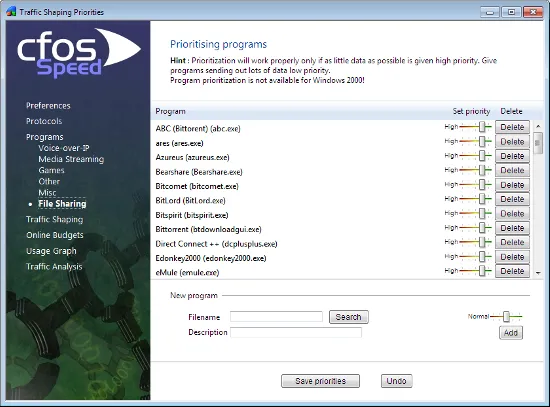
ABC (Bittorent) » abc.exe
ApexDC » apexd-x64.exe
Bearshare » bearshare.exe
BiglyBT bittorrent client » biglybt.exe
BitLord » bitlord.exe
Bitcomet » bitcomet.exe
Bitcomet » bitcomet_x64.exe
Bitspirit » bitspirit.exe
Bittorrent Web » btweb.exe
Bittorrent » bittorrent.exe
CryptLoad » cryptload.exe
Deluge Bittorrent Client » deluge.exe
Deluge Bittorrent Client » deluged.exe
Direct Connect ++ » dcplusplus.exe
Edonkey2000 » edonkey2000.exe
FlylinkDC++ Data Manager » flylinkdc_x64.exe
FreeRapid Downloader » frd.exe
Fshare Tool » fsharetool.exe
G3torrent » g3torrent.exe
Gigatribe » gigatribe.exe
GomezPEER » gomezpeer.exe
JDownloader2 » jdownloader2.exe
JDownloader » jdownloader.exe
Kazaa Lite K++ » kazaalite.kpp
Kazaa » kazaa.exe
Lime Wire » limewire.exe
Megamanager » megamanager.exe
MoorHunt » moorhunt.exe
Orbit Downloader » orbitdm.exe
Overnet » overnet.exe
QQDownload » qqdownload.exe
RapidShareManager » rapidsharemanager.exe
Share EX2 » share.exe
Shareaza » shareaza.exe
Shareman » shareman.exe
Soulseek » slsk.exe
StrongDC++ » strongdc.exe
Thunder 9 background process » downloadsdkserver.exe
Thunder Network » thunderplatform.exe
Thunder Network » thunderservice.exe
Thunder P4P Client » p4pclient.exe
Thunder » thunder.exe
ThunderServiceLite » thunderservicelite.exe
Tixati » tixati.exe
Tixati » tixati_windows64bit.exe
Torrex » torrex.exe
Transmission-Qt client » transmission-qt.exe
Transmission » transmission-daemon.exe
USDownloader » usdownloader.exe
Vuze / Azureus » azureus.exe
WinMX » winmx.exe
Winny » winny.exe
Wuala File Sharing » wuala.exe
Zona Bittorrent » zona.exe
ares » ares.exe
clink file sharing » clink8236.exe
eMule » emule.exe
hiyagu downlord it » foxy.exe
qBittorrent Client » qbittorrent.exe
uSerenity » userenity.exe
uTorrent Advertizement » utorrentie.exe
uTorrent » utorrent pt.exe
uTorrent » utorrent.exe
uTorrent » utorrent_2.2.1_build_25302.exe
xfplay p2p » xfp2p.exe
搜狐加速器 » sohuva.exe
APKCombo VPN Client » apkcombovpn.exe
AnyDesk remote-desktop » anydesk.exe
Avast SecureLine » vpnsvc.exe
Avira Phantom VPN Client » phantomvpn.exe
Chrome Remote Desktop Host » remoting_host.exe
Citrix-Client » wfica32.exe
DNS Bench Benchmark Tool » dnsbench.exe
DNSCrypt / Umbrella Roaming Client / DNS Leak Fix » dnscrypt-proxy.exe
Docker VPN » com.docker.vpnkit.exe
ExitLag Lag » exitlag.exe
ExpressVPN » expressvpnd.exe
Game TV Plus App » gametvplus.exe
Garena platform service » gxxsvc.exe
HLSW Half-Life Server Watch » hlsw.exe
Hamachi VPN client » hamachi-2.exe
Hamachi » hamachi.exe
Haste Ping Reducer » haste.exe
Honeygain App » honeygain.exe
ICQLite » icqlite.exe
Ivacy VPN » ivacy.exe
IxChariot » endpoint.exe
Live Mesh Remote Desktop » wlcrasvc.exe
MetaTrader Platform Software » terminal.exe
Microsoft Terminal Services Client » mstsc.exe
Mikrotik WinBOX » winbox.exe
Mudfish VPN service » mudflow.exe
NetEase UU Online Game Accelerator » uu_ball.exe
Netviewer Meet Moderator » nv_meet_moderator_en.exe
NoPing Tunnel » noping.exe
NordVPN service » nordvpn.exe
NordVPN » nordvpn-service.exe
Ookla speed test speedtest.net » speedtest.exe
PARSEC remote access for gaming » parsecd.exe
Pidgin » pidgin.exe
Pingzapper » pingzapper.exe
Project V VPN » wv2ray.exe
Proton VPN » protonvpn.exe
Psiphon 3 » psiphon3.exe
Punkbuster » pnkbstrb.exe
QMProxyAccelerator » qmproxyacceler.exe
Radmin VPN Control Service » rvcontrolsvc.exe
Remote Administrator » radmin.exe
Shadow for Windows » shadow.exe
Shadowsocks Protocol Client » shadowsocks.exe
Shadowsocks Proxy » shadowsocksr-dotnet4.0.exe
Sichuan Xunyou Online Game Accelerator » xunyou.exe
Simple DNS Plus » sdnsmain.exe
SoftEther VPN Client » vpnclient.exe
SoftEther VPN client » vpnclient_x64.exe
SoftEther VPN server » vpnserver_x64.exe
Speedify VPN » speedify.exe
Sunlogin remote control » sunloginclient.exe
Supremo remote control » supremo.exe
Surfshark VPN Client » surfshark.service.exe
Surfshark VPN » surfshark.exe
Teamviewer Service » teamviewer_service.exe
Teamviewer » teamviewer.exe
ToDesk Remote Desktop » todesk.exe
TrackChecker » trackchecker.exe
TreeWalk DNS » named.exe
Trillian » trillian.exe
Tunngle LAN Gaming » tunngle.exe
UU Game Booster » uu.exe
Ultra VNC Viewer » vcviewer.exe
V2Ray core of Project V » v2ray.exe
VNC » winvnc4.exe
VPN Avira Antivirus Software » avira.vpnservice.exe
VPNGame.net Online Game Accelerator » vpngame.exe
Virtual Desktop » virtualdesktop.streamer.exe
WinVNC » winvnc.exe
WireGuard VPN Tunnel » wireguard.exe
Wonderful Accelerator » qimiao.exe
Yahoo! All-Seeing-Eye » eye.exe
ZeroTier Global Area Network » zerotier-one_x64.exe
eqwatch earthquake location & magnitude » eqwatch.exe
mIRC » mirc.exe
qiyou Game Accelerator » qeeyou.exe
雷神加速器转换 Game Accelerator » socksengine.exe
2Shared Downloader » cfpt_launcher.exe
360 Total Security » 360safe.exe
360 Total Security » 360tray.exe
360 anti-virus real-time monitoring » 360rp.exe
4K Stogram Portable » 4kstogram.exe
4K Video Downloader » 4kvideodownloader.exe
ADrive Cloud Storage Client » adrive.exe
AMD Graphics Settings » radeonsettings.exe
AMD Radeon Software » radeonsoftware.exe
AMD User Experience » auepmaster.exe
ASRock APP Shop » asrappshop.exe
ASUS Armoury Crate » armourycrate.exe
AVG Internet Security service » avgsvc.exe
Acrobat Reader » acrord32.exe
Acronis True Image » trueimagemonitor.exe
Acronis TrueImage Sync Agent Service » syncagentsrv.exe
Ad Muncher » admunch.exe
Adguard Web Filter » adguardsvc.exe
Adobe Creative Cloud » adobe desktop service.exe
Adobe Flash Player updater » flashplayerupdateservice.exe
Adobe Genuine Software Integrity service » adobegcclient.exe
Advanced SystemCare System-Cleaner » asc.exe
Advanced SystemCare updater » iobitliveupdate.exe
AirExplorer multicloud manager » airexplorer.exe
AlphaAntiLeak Java protector » alphaantileak.exe
Android Emulator » androidemulator.exe
Anonymizer » anonproxy.exe
Anti Virus Project » avp.exe
Anti-Malware Real-Time Windows Service » mbamservice.exe
Apache HTTP server » httpd.exe
Apple Push Service Daemon » apsdaemon.exe
Apple iCloud » iclouddrive.exe
Avast Antivirus Updater » instup.exe
Avast Antivirus » avastui.exe
Avast Cleanup Service » tuneupsvc.exe
Avast Emergency Update » avemupdate.exe
Avast Secure Browser » avastbrowser.exe
Avast » avastsvc.exe
Baidu Net Disk » baidunetdisk.exe
Baidu Spark Browser » spark.exe
Baidu Wangpan Web Drive » pandownload.exe
BaiduYunGuanjia file manager » baidunetdiskhost.exe
BattlEye Anti-Cheat Service » beservice.exe
Battlefield 4 Web Helper » bf4webhelper.exe
Battlefield 4 Web Helper » bf4x86webhelper.exe
Bethesda Launcher App » bethesdanetlauncher.exe
Bethesda Updater App » bethesdanetupdater.exe
Betternet VPN Service » betternet.exe
Binance Crypto Trading App » binance.exe
Binreader » binreader.exe
Bionius Booru image grabber » grabber.exe
Bitdefender 2018 VPN » bdvpnservice.exe
Bitdefender 2019 » bdservicehost.exe
Bitdefender Device Management Service » devmgmtservice.exe
Bitdefender Total Security service » productagentservice.exe
Bitdefender Total Security service » vsserv.exe
Bitdefender Vulnerability Scanner » vulnerability.scan.exe
Bitdefender Wallet Agent » bdwtxag.exe
Bitdefender service » bdredline.exe
Bittorrent file system » btfs.exe
Blitz App » blitz.exe
Blizzard in-game browser » blizzardbrowser.exe
Blocklist Manager » blockmgr.exe
BlueStacks Agent Android Emulator » hd-agent.exe
BlueStacks Android Host Player » hd-player.exe
BlueStacks Android Host Player » hd-runapp.exe
BlueStacks App Player helper » bluestackshelper.exe
BlueStacks App Player installer » bluestacksinstaller.exe
BlueStacks App Player » bluestacks.exe
Boinc » boinc.exe
Brave web browser » brave.exe
CA Personal Firewall » ca.exe
CCleaner updater » ccupdate.exe
CCleaner » ccleaner64.exe
CFToolbox » cftoolbox.exe
CORSAIR iCUE » icue.exe
CaptchaBotRS » captchabotrs.exe
CefSharp Web Browser » cefsharp.browsersubprocess.exe
Cent Browser Updater » centbrowserupdater.exe
Chia Blockchain Client » chia.exe
Chia Blockchain Client » start_full_node.exe
Chrome M1N3R Software » miner.exe
CloudflareWARP App » warp-svc.exe
Coc Coc Webbrowser » browser.exe
CocCoc browser updater » coccocupdate.exe
Comodo Dragon » dragon.exe
Comodo IceDragon Browser » icedragon.exe
Comodo Internet Security » cmdagent.exe
Corel Update Helper » cuh.exe
Creative Entertainment Console » entc.exe
Crossfire Europe Patcher » patcher_cf.exe
Crossfire Philippines Patcher » patcher_cf2.exe
CurrentWare client service » cwclient.exe
Cyberfox Web Browser » cyberfox.exe
Daily Office License Activation Heartbeat » olicenseheartbeat.exe
Docker » com.docker.backend.exe
Download Acceleration Manager » daman.exe
Download Accelerator Plus » dap.exe
Download Manager » aria2c.exe
Download Master » dmaster.exe
DrWeb Security » dwnetfilter.exe
Driver Booster » driverbooster.exe
DriverEasy driver downloader » drivereasy.exe
Dropbox Updater » dropboxupdate.exe
Dropbox » dropbox.exe
E/A Origin client service » originclientservice.exe
EA Background Service » eabackgroundservice.exe
EA Desktop App » eadesktop.exe
EA Desktop Launcher Helper » ealaunchhelper.exe
EA Desktop Launcher » ealauncher.exe
EA Origin Server » eacoreserver.exe
ESET Smart Security service » ekrn.exe
EagleGet » eagleget.exe
Easy Anti-Cheat EOS Service » easyanticheat_eos.exe
Easy Anti-Cheat Service » easyanticheat.exe
Easy Uploader » easyuploader.exe
EasyAntiCheat » easyanticheat_launcher.exe
Electronic Arts Connect Microsoft » eaconnect_microsoft.exe
Electronic Arts Link » ealink.exe
Electronic Arts Steam Proxy » easteamproxy.exe
Epic Online Services Host » epiconlineserviceshost.exe
Epic Online Services UI Helper » epiconlineservicesuihelper.exe
Epic Online Services User Helper » epiconlineservicesuserhelper.exe
Epic Online Services » epiconlineservices.exe
Epic Web Helper » epicwebhelper.exe
Exception Hunter 2 dev tool » hunt.exe
Extreme Media Digital Studio » dstudio.exe
F-Secure ORSP Service » fsorsp64.exe
FAROO Distributed Search » faroo.exe
FICUS/UI client » ficus-ui.exe
FTPRush » ftprush.exe
Face It anti-cheat service » faceitservice.exe
Facebook Gameroom » facebookgameroom.exe
FeedDemon » feeddemon.exe
Filezilla SFTP » fzsftp.exe
Filezilla » filezilla.exe
Firefox Portable » firefoxportable.exe
Firefox Telemetry » pingsender.exe
Firefox Webbrowser » firefox.exe
Firefox helper » helper.exe
Firstload » ikarus.exe
Flash to FireFox » plugin-container.exe
FlashFXP » flashfxp.exe
FlashGet 3 Download Manager » flashget3.exe
FlashGet Download Manager » flashget.exe
Fortress Secure Client » fsclient.exe
Free Download Manager » fdm.exe
G Data AntiVirus » avkproxy.exe
GIGABYTE AdjustService App Center » adjustservice.exe
GIGABYTE App Center » gcupd.exe
GOG Galaxy v2 Client Helper Application » galaxyclient helper.exe
GOG Galaxy v2 Client Service » galaxyclientservice.exe
GOG Galaxy v2 Communication Service » galaxycommunication.exe
GOG Galaxy v2 Galaxy Overlay » galaxyoverlay.exe
GOG Galaxy v2 Galaxy Updater Application » galaxyupdater.exe
GOG Galaxy v2 Launcher App » galaxyclient.exe
GOG Galaxy v2 Notifications Renderer » gog galaxy notifications renderer.exe
GQNA GameNet » qgna.exe
Gaijin Game updater » gaijin_downloader.exe
Game TV Plus Gaming Platform » gtvplus.exe
GameLoop Android Emulator » cef_game_render.exe
GameLoop Emulator » androidemulatorex.exe
Gameforge Client » gfclient.exe
GeForce Now » geforcenow.exe
GeForce monitor » geforcenowreliabilitymonitor.exe
Gigabyte App Center » apcent.exe
Gigabyte Home Cloud » hcloud.exe
GlobalProtect App » pangps.exe
Google Chrome Browser » chrome_proxy.exe
Google Chrome » chrome.exe
Google Drive sync » googledrivesync.exe
Google Earth » googleearth.exe
Google FileStream » googledrivefs.exe
Google Updater » googleupdate.exe
HFS (HTTP File Server) » hfs.exe
HTTP proxy » kenproxy.exe
Heimdal.DarkLayerGuard Security » heimdal.darklayerguard.exe
IObit Prozess Startup Manager » suo12_startupmanager.exe
IQ Option Trading App » iqtray.exe
Intel Driver and Support Assistant » dsaupdateservice.exe
Intel Graphics Control Panel » gfxdownloadwrapper.exe
Intel Telemetry » lrio.exe
Internet Download Accelerator » ida.exe
Internet Download Manager » idman.exe
Internet Explorer » iexplore.exe
Iridium Webbrowser » iridium.exe
JAVA updater » jusched.exe
Java » java.exe
Java » javaw.exe
JetSwap SafeSurf » safesurf.exe
Kaspersky Secure Connection » ksde.exe
Kinza Web Browser » kinza.exe
Kodi media center » kodi.exe
Kryptex cryptocurrency miner » kryptex.exe
LDPlayer Android Emulator Player » ldplayer.exe
LDPlayer Android emulator News » ldnews.exe
LDPlayer Virtual Box Android Emulator » ldvboxheadless.exe
LeechGet » leechget.exe
Leigod Online Game Accelerator » leigod.exe
Liebao Web Browser » liebao.exe
Logitech G HUB » lghub_agent.exe
Logitech Gaming Framework » lcore.exe
MEmu Android emulator » memu.exe
MEmu Multiple Instances Android emulator » memuconsole.exe
MS Windows text-to-speech » speechruntime.exe
MS Xbox App Services » xboxappservices.exe
MS Xbox App » xboxapp.exe
MS Xbox App » xboxpcapp.exe
Mail.ru Game Center » gamecenter@mail.ru.exe
MailClient by eM Client » mailclient.exe
Maiwei VM Memu » memuheadless.exe
Malware Anti-Malware » mbam.exe
Maxthon Web Browser » maxthon.exe
MegaSync Downloader App » megadownloader.exe
Megasync » megasync.exe
Mesh Operating Environment » moe.exe
MetaTrader Client Terminal » terminal64.exe
Microleaves Online Guardian » online-guardian.exe
Microsoft Compatibility Telemetry » compattelrunner.exe
Microsoft Cortana Maps » placesserver.exe
Microsoft Cortana module downloader » speechmodeldownload.exe
Microsoft Cortana service » actionuriserver.exe
Microsoft Edge Browser (Chromium) » msedge.exe
Microsoft Edge Browser » microsoftedge.exe
Microsoft Edge Content Process » microsoftedgecp.exe
Microsoft Edge Updater » microsoftedgeupdate.exe
Microsoft Edge Web Platform » microsoftedgesh.exe
Microsoft Edge Web View 2 » msedgewebview2.exe
Microsoft Edge browser helper » browser_broker.exe
Microsoft Feeds Synchronization » msfeedssync.exe
Microsoft Game Bar » gamebarpresencewriter.exe
Microsoft Gaming Install Services » gamingservices.exe
Microsoft HPC Pack » hpcmonitoringclient.exe
Microsoft HTA browser » mshta.exe
Microsoft MSN » microsoft.msn.news.exe
Microsoft Office Click-to-Run » officec2rclient.exe
Microsoft Office SDX Helper » sdxhelper.exe
Microsoft Office Telemetry Agent » msoia.exe
Microsoft Office background program » officeclicktorun.exe
Microsoft OneDrive » onedrivestandaloneupdater.exe
Microsoft Onedrive » onedrive.exe
Microsoft Outlook Communications » hxtsr.exe
Microsoft Outlook » hxoutlook.exe
Microsoft Outlook » outlook.exe
Microsoft Photo Image Viewer » microsoft.photos.exe
Microsoft Security Center » mssecsvc.exe
Microsoft Update Notifier » updatenotificationmgr.exe
Microsoft Widgets » widgets.exe
Microsoft Windows Process Settings » systemsettings.exe
Microsoft Windows Setting Synchronization » settingsynchost.exe
Microsoft Windows Store App » winstore.app.exe
Microsoft Windows rundll service » rundll32.exe
Microsoft Windows task host » taskhostw.exe
Microsoft Your Phone » yourphoneserver.exe
Mipony Download Manager » mipony.exe
Monex Trader » desktopcymo.exe
Mr. AutoTrading Client » mr.autotrading_lite.exe
Mr. Guard Email Vault » mr.guard.exe
MultiCharts Trading Client » tradingserver.exe
MultiCharts Trading » tsserver.exe
Mumu Emulator » nemuheadless.exe
My.com Games Center Service » hg64.exe
My.com Games Launcher/Updater » mycomgames.exe
NBMiner App » nbminer.exe
NOXGAMES MOMO Player » dnplayer.exe
NVIDIA Container » geforcenowcontainer.exe
NVIDIA Container » nvcontainer.exe
NVIDIA Container » nvdisplay.container.exe
NVIDIA Driver Profile Updater » nvprofileupdater64.exe
NVIDIA Share screen recording » nvidia share.exe
NVIDIA Telemetry Container » nvtelemetrycontainer.exe
NVIDIA Web Helper Service » nvidia web helper.exe
NW.js Javascript App framework » nw.exe
Neat Download Manager » neatdm.exe
Neologica Profit Pro » profitchart.exe
NewsLeecher » newsleecher.exe
Newsbin 64 bits » newsbinpro64.exe
NiceHash Miner 2.0 » app_nhm.exe
NiceHash Miner » excavator.exe
NiceHash QuickMiner Client » nicehashquickminer.exe
NinjaTrader » ninjatrader.exe
Node.js » node.exe
Norton Security » nortonsecurity.exe
Nox App Player Android emulator » multiplayermanager.exe
Nox App Player » nox.exe
Nox App Player » noxvmhandle.exe
Nox App Player » noxvmplayer.exe
OpenVPN » openvpn.exe
Opera Autoupdater » opera_autoupdate.exe
Opera » opera.exe
Oracle Virtual Box » ldboxheadless.exe
Oracle Virtual Box » virtualbox.exe
Orbitum social browser » orbitum.exe
Origin Web Helper Electronic Arts » originwebhelperservice.exe
Outlook Express » msimn.exe
Overwolf Browser » overwolfbrowser.exe
Overwolf » overwolf.exe
Pale Moon Browsers » palemoon.exe
Pando Download Manager » pmb.exe
Phoenixminer » phoenixminer.exe
Pressreader » pressreader.exe
ProgDVB TV and Radio via DVB-PCI card » progdvbnet.exe
Proxifier » proxifier.exe
Proxy for Multi Theft Auto » proxy_sa.exe
ProxySwitcher » proxyswitcher.exe
Psiphon tunnel » psiphon-tunnel-core.exe
Python » python.exe
QQ Browser by Tencent » qqbrowser.exe
Qihoo 360 Internet Security » qhactivedefense.exe
Qihoo 360 Total Security » 360se.exe
Qihoo Web browser » 360chrome.exe
Qt Web Engine Framework » qtwebengineprocess.exe
QuiteRSS news reader » quiterss.exe
RaiDrive cloud storage drive » raidrive.service.x64.exe
Razer Central Service » razercentralservice.exe
Razer GameManager » gamemanagerservice.exe
Razor Cortex booster » razercortex.exe
Rclone rsync » rclone.exe
Resilio File Sync » resilio-sync_x64.exe
Resilio File Sync » resilio/sync.exe
Riot Games User Experience Client » riotclientux.exe
Rockstar Games Launcher App » rockstarservice.exe
Rockstar Games Launcher Updater App » launcherpatcher.exe
Rockstar Games Social Club » socialclubhelper.exe
Routed connection » routed
Ruby interpreter » rubyw.exe
Rufus Create Bootable USB drives » rufus.exe
SABnzbd Binary Newsreader » sabnzbd.exe
SOPHOS Antivirus plugin » sophosmirror.exe
STB DataServer » stbdataserver.exe
Safari » safari.exe
Samsung Magician » samsungmagician.exe
Setup Program » setup.exe
Skype Icons » skypeicon.exe
Slimjet Browser » slimjet.exe
Snow Inventory Client » client64.exe
Soochow Securities trade software » xiadan.exe
Sophos Anti-Virus » swi_fc.exe
Speedify VPN UI » speedifyui.exe
Steam Client Service » steamservice.exe
Steam Client Web Helper » steamwebhelper.exe
Steam Error Reporter » steamerrorreporter.exe
Steam Launcher App » steam.exe
T-Rex Miner » t-rex.exe
Tencent Gaming Buddy » appmarket.exe
Tencent Gaming Buddy » gamedownload.exe
TeraBox Cloud Storage » terabox.exe
The Bat » thebat.exe
The Elder Scrolls Online launcher » bethesda.net_launcher.exe
The Tor Project » tor.exe
Thunderbird » thunderbird.exe
Total Commander » totalcmd.exe
Touchance 2020 tool » touchance.exe
Trader Workstation » tws.exe
Tresorit » tresorit.exe
Twitch Updater » twitch.exe
UC Browser for PC » ucbrowser.exe
Ubisoft Connect Launcher App » ubisoftconnect.exe
Ubisoft Connect Service » uplayservice.exe
Ubisoft Connect Web Core » uplaywebcore.exe
Ubisoft Game Launcher » ubisoftgamelauncher.exe
Ubisoft Game Launcher » ubisoftgamelauncher64.exe
Ummy Video Downloader » ummyvideodownloader.exe
Unknown program » unknown
Unreal Engine Launcher » unrealenginelauncher.exe
Update Donwloader for Tencent Games » teniodl.exe
Updater Program » update.exe
Updater Program » updater.exe
Uplay Client » upc.exe
Uplay Ubisoft game center » uplay.exe
Usenext » usenext.exe
VMWare » vmware.exe
VMware NAT Service » vmnat.exe
Valorant Riot Vanguard Anti-Cheat Service » vgc.exe
Vanguard Anti-Cheat Software » vanguard.exe
Vanguard Tray Anti-Cheat » vgtray.exe
VdhCoApp Video DownloadHelper » net.downloadhelper.coapp-win-64.exe
VirtualBox Headless Frontend » ld9boxheadless.exe
Vivaldi Browser » vivaldi.exe
Vkontakte » vkontaktedj.exe
WPS Office » wpscloudsvr.exe
WTFast » wtfast.exe
Warcraft III Loader » w3l.exe
Wargaming.net Client Web Helper » cef_browser_process.exe
Wargaming.net Game Center API » wgc_api.exe
Wargaming.net Game Center Renderer » wgc_renderer.exe
Wargaming.net Game Center Web Host » wgc_renderer_host.exe
Wargaming.net Game Center » wargamingerrormonitor.exe
Waterfox Web Browser » waterfox.exe
Website Watcher » wswatch.exe
Wegame game platform » wegame.exe
WhatPulse App » gujianol.exe
WiFi Master Key » wifimaster.exe
WinSCP File Transer Client » winscp.exe
Windows 7 Desktop Gadgets » sidebar.exe
Windows Background Task Host » backgroundtaskhost.exe
Windows Background Transfer service » backgroundtransferhost.exe
Windows Cortana » searchapp.exe
Windows Cortana » searchui.exe
Windows Defender Service exe
cutable » msmpeng.exe
Windows Defender SmartScreen » smartscreen.exe
Windows Device Census » devicecensus.exe
Windows Error Reporting » werfault.exe
Windows Explorer » explorer.exe
Windows Key Management Service » sppextcomobj.exe
Windows Live Mail » wlmail.exe
Windows PowerShell » powershell.exe
Windows Problem Reporting » wermgr.exe
Windows Search Filter Host » searchhost.exe
Windows Store App » winstore.exe
Windows System Startmenu » startmenuexperiencehost.exe
Windows WWA Host process » wwahost.exe
Windows app permissions service » runtimebroker.exe
Windows authentication process » lsass.exe
Windows dllhost service » dllhost.exe
Windows service host » svchost.exe
Windows system components repair » sihclient.exe
Windows update client » usocoreworker.exe
Windscribe ad blocker » windscribe.exe
X7 Oscar Keyboard Editor » oscareditor.exe
XBox Game Bar service » gamebar.exe
XMRig Miner Client » xmrig.exe
Xbox game service » xbox.exe
Xtreme Download Manager » xdm-app.exe
Yandex Browser » yandex.exe
Yandex.Disk » yandexdisk2.exe
YouTube Downloader » youtube-dl.exe
Zemana AntiMalware » zam.exe
Zen Fulcrum Browser » zfgamebrowser.exe
avira » avcenter.exe
cFosSpeed Service » spd.exe
cFosSpeed Status Windows » cfosspeed.exe
generic auto updater » autoupdate.exe
generic downloader » downloader.exe
k9 Internet Protect » k9filter.exe
t-online.de Browser » browser7.exe
thinkorswim Trading App » thinkorswim.exe
uFiler Download Manager » ufiler.exe
µTorrent Web browser extension » utweb.exe
世界之窗 » twchrome.exe
搜狗高速浏览器 » sogouexplorer.exe