Logitech keyboard support
Program
- Installation and Registration
- Status Window
- Status Window
- Status Window on phone/tablet
- Wi-Fi access point
- Online Budgets
- Online Budgets
- Usage Graph
- Usage Graph
- Logitech keyboard support
- Keyboard LEDs
- Keyboard LEDs
- The cFosSpeed Configuration-dialog
- Save Settings
- Save Settings
- Additional languages for cFosSpeed
- Technical references for experts (English only)
- SPD.EXE Commands
- SPD.EXE Commands
- Installation and Registration
- Status Window
- Status Window
- Status Window on phone/tablet
- Wi-Fi access point
- Online Budgets
- Online Budgets
- Usage Graph
- Usage Graph
- Logitech keyboard support
- Keyboard LEDs
- Keyboard LEDs
- The cFosSpeed Configuration-dialog
- Save Settings
- Save Settings
- Additional languages for cFosSpeed
- Technical references for experts (English only)
- SPD.EXE Commands
- SPD.EXE Commands
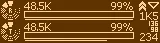
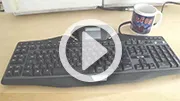
cFosSpeed supports the Logitech gamer keyboards G19, G15, G13, G510 and compatible models. In order to use the display of such a gaming keyboard, the Logitech Gaming Software V7.00 or higher must be running. Then you can navigate to the cFosSpeed window settings menu and activate Logitech display support. Now the cFosSpeed status window is displayed on the keyboards display instead of the Windows desktop.
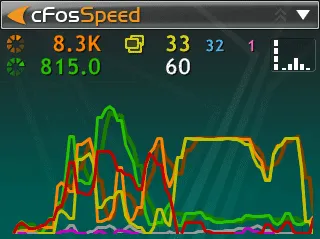
We suggest you use the following skins.